Skipjack User Guide
All Users
Welcome to Skipjack!
Schmidt Sciences Users
Schmidt Sciences users should reach out to Schmidt Sciences rather than refer to the guides below.
Requirements
Item |
Notes |
|---|---|
JHED Login ID |
or Email (External collaborators only) |
OTP Authenticator App |
Required for Multi-Factor Authentication (MFA) |
Hopkins VPN (Pulse Secure) |
Required for off-campus access to some services |
SSH client |
macOS/Linux: built-in • Windows: OpenSSH or PuTTY |
Create or Activate an Account
Navigate to the Arch Portal at https://portal.arch.jhu.edu
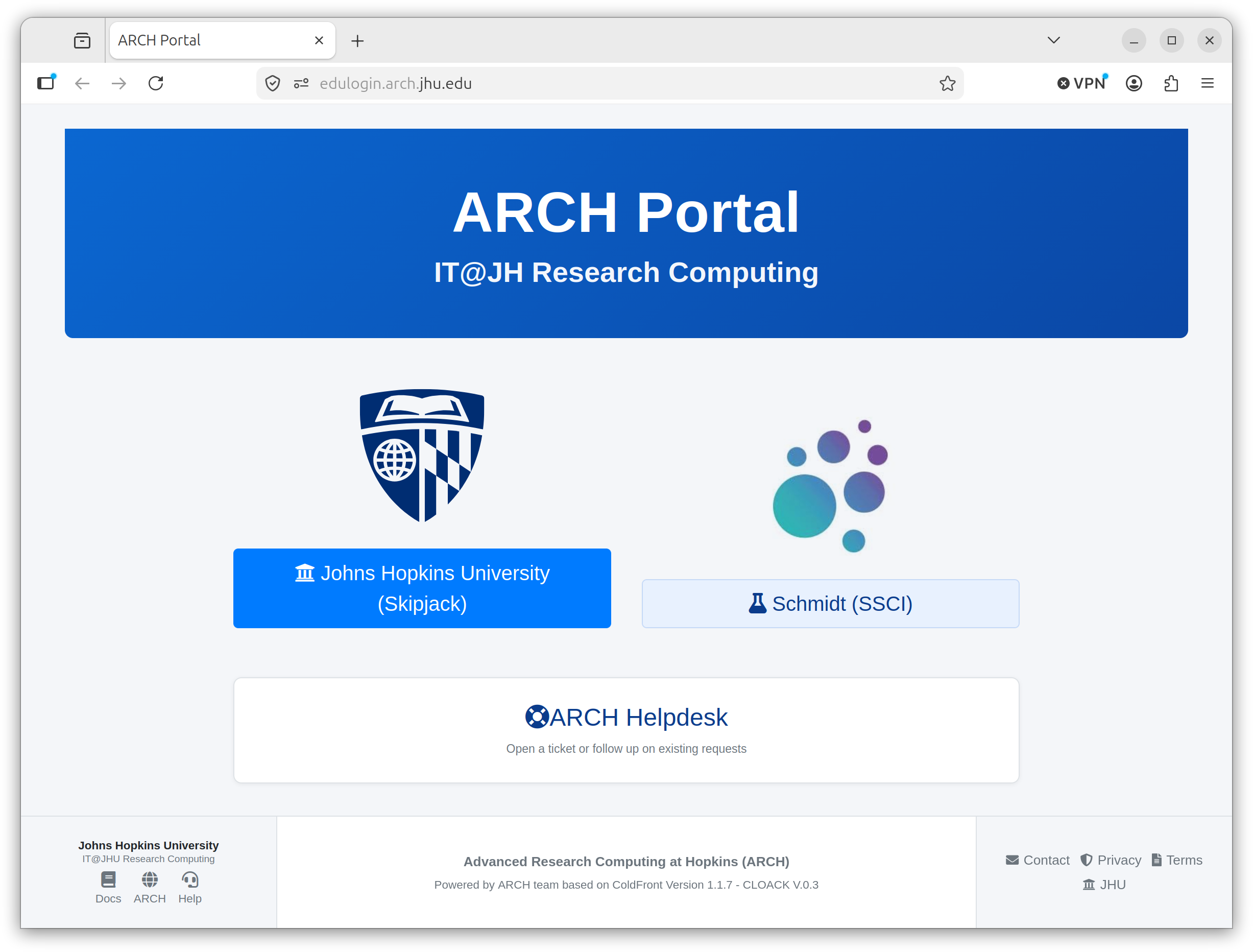
Schmidt Sciences users should select the Schmidt (SCCI) button. All other users, select Johns Hopkins University (Skipjack).
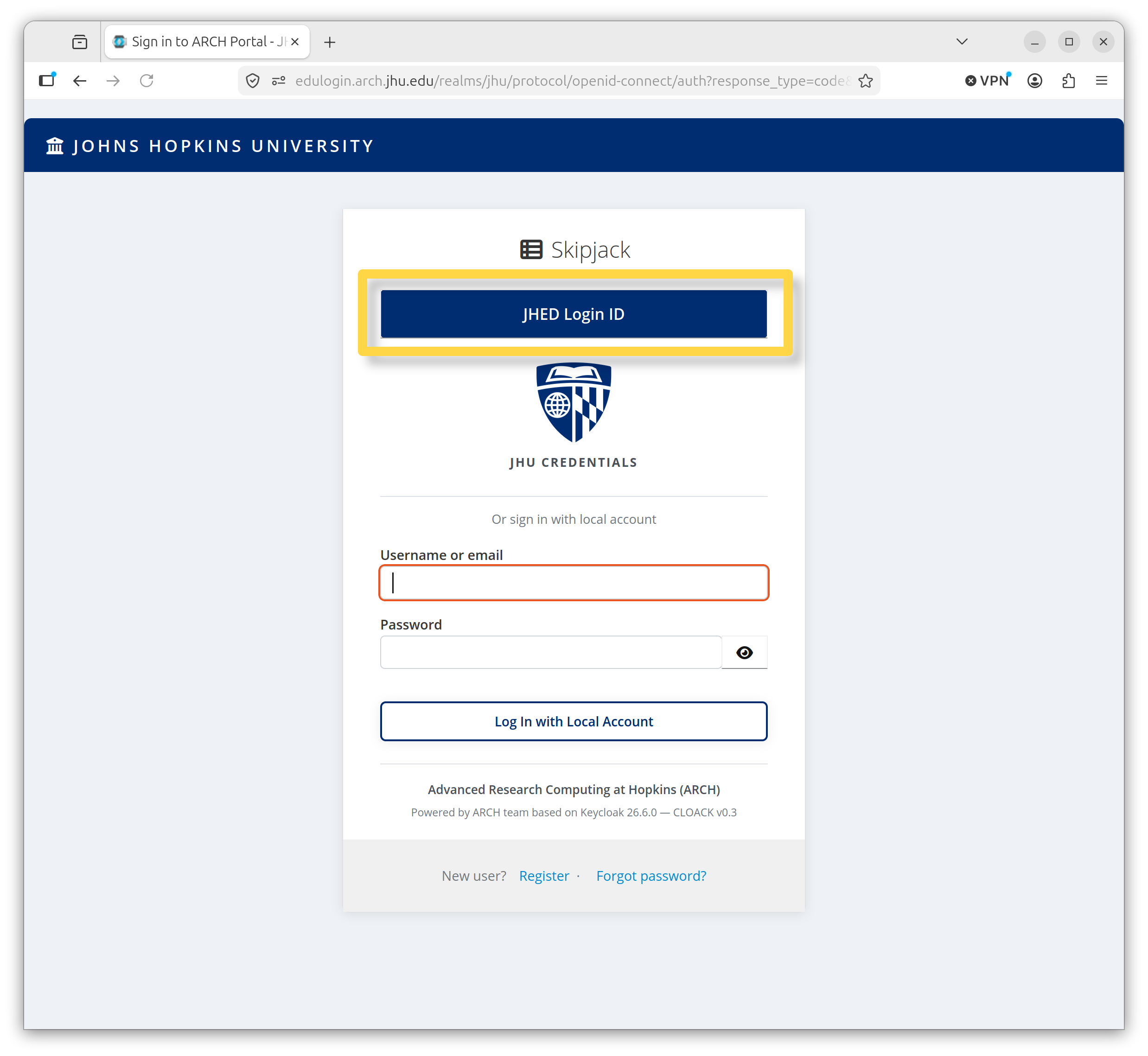
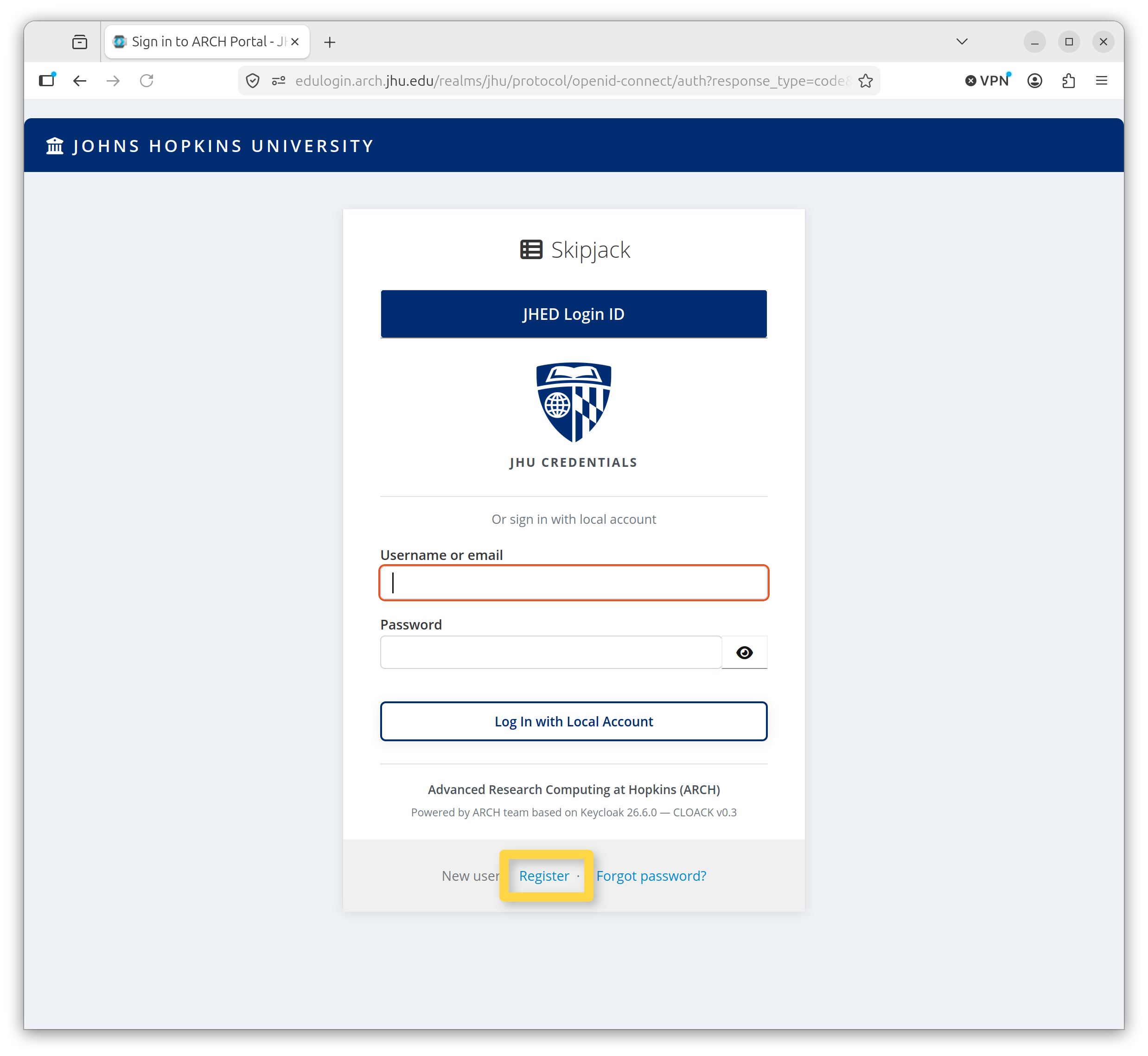
There are two login methods: JHED Login ID and Local Account.
Log in via JHED Login ID
Click the JHED Login ID button and follow the prompts.
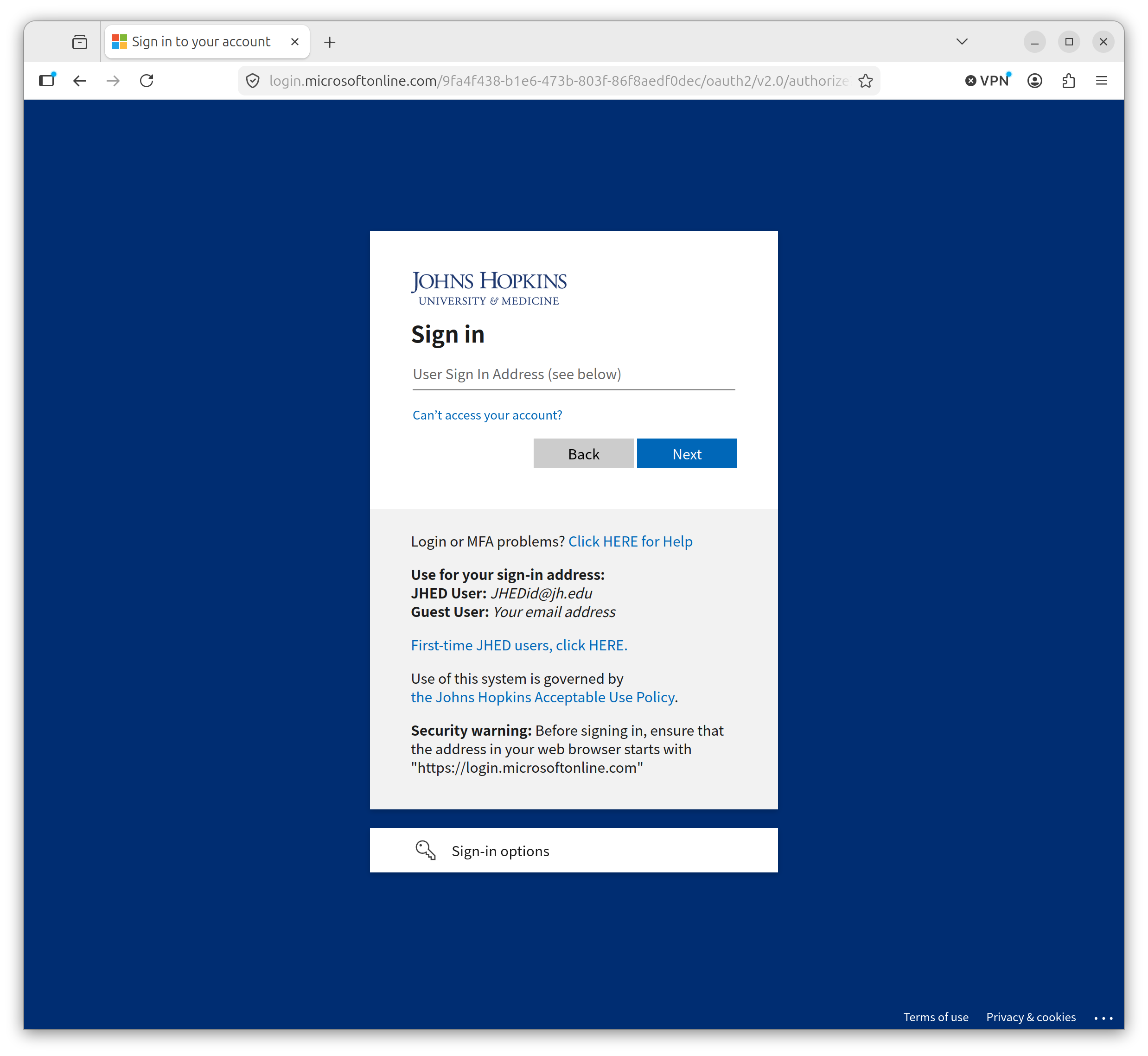
Users will be prompted with the JHED login sequence.
Upon first login, users will be asked to accept the Terms of Service.
Log in via Local Account
Warning
This method is for external collaborators and Schmidt Sciences users only. JHU faculty, staff, and students should sign in with the JHED Login ID described above.
Schmidt Sciences users and external collaborators can create an account and log in with their email. This option is not permitted for users with a JHED Login ID.
First Time
Click the Register link, and fill out the information to create a new account.
Note
Schmidt Sciences users should prepend “scci-” to their username. External collaborators should prepend “ext-”
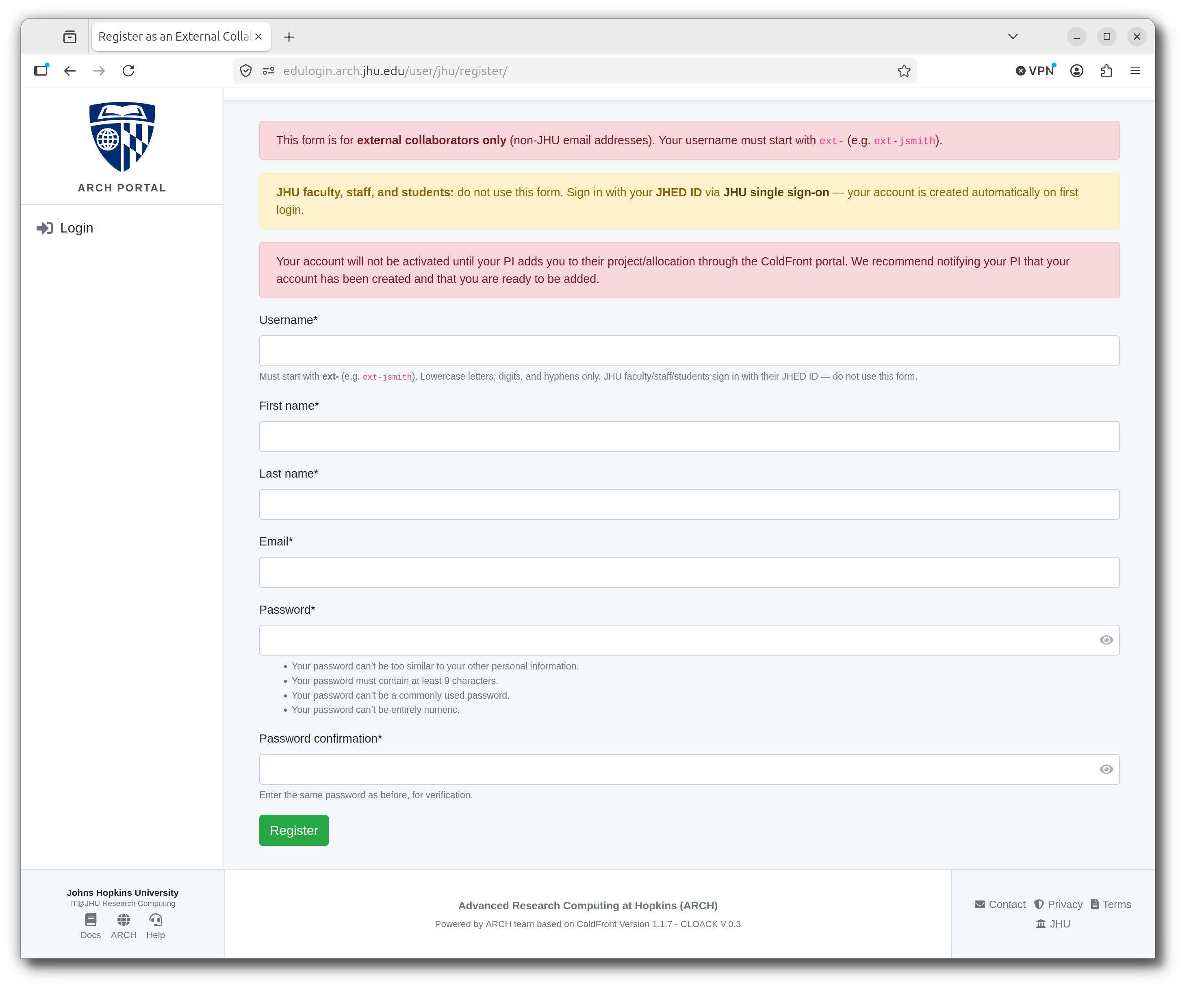
When complete, you will be returned to the login screen. Log in with the credentials you just created.
Upon first login, users will be asked to accept the Terms of Service.
Setup Multifactor Identification
All users will need a One-Time Password (OTP) to connect to Skipjack. To set up an OTP authenticator app for your account, follow these steps:
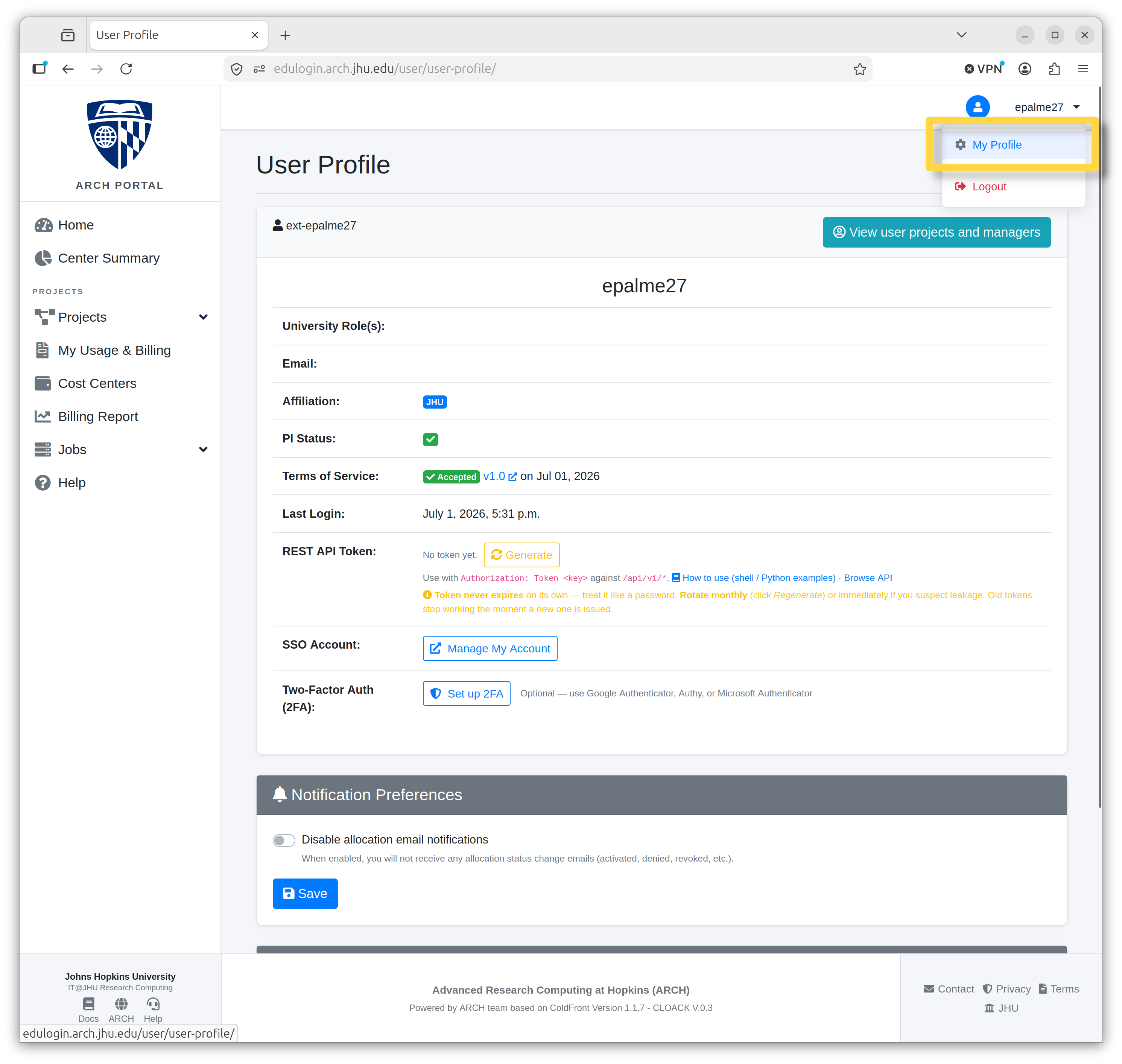
Navigate to My Profile.
Click the dropdown menu next to the user icon and select “My Profile.”
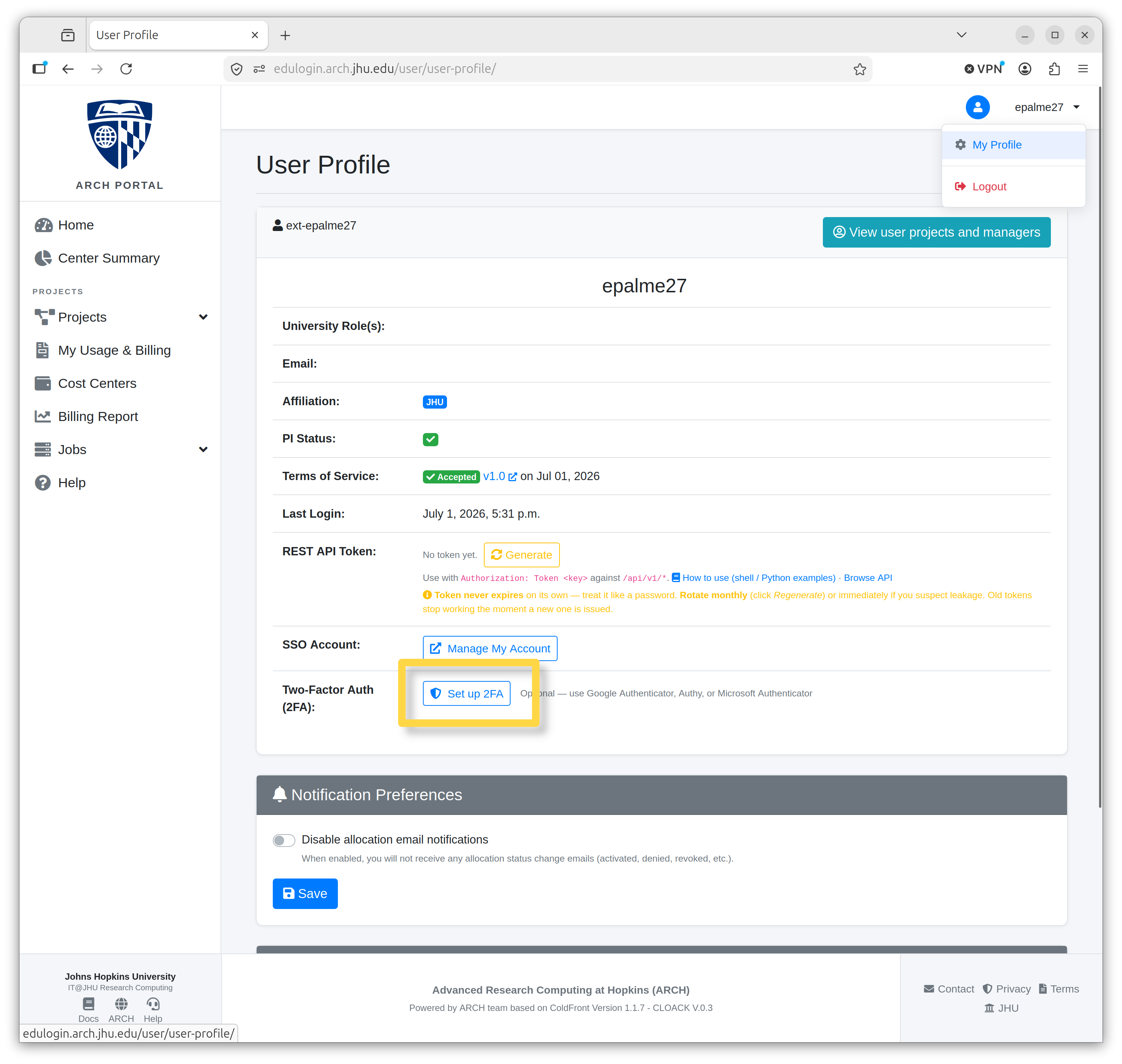
Under Two-Factor Auth (2FA), click the “Set up 2FA” button.
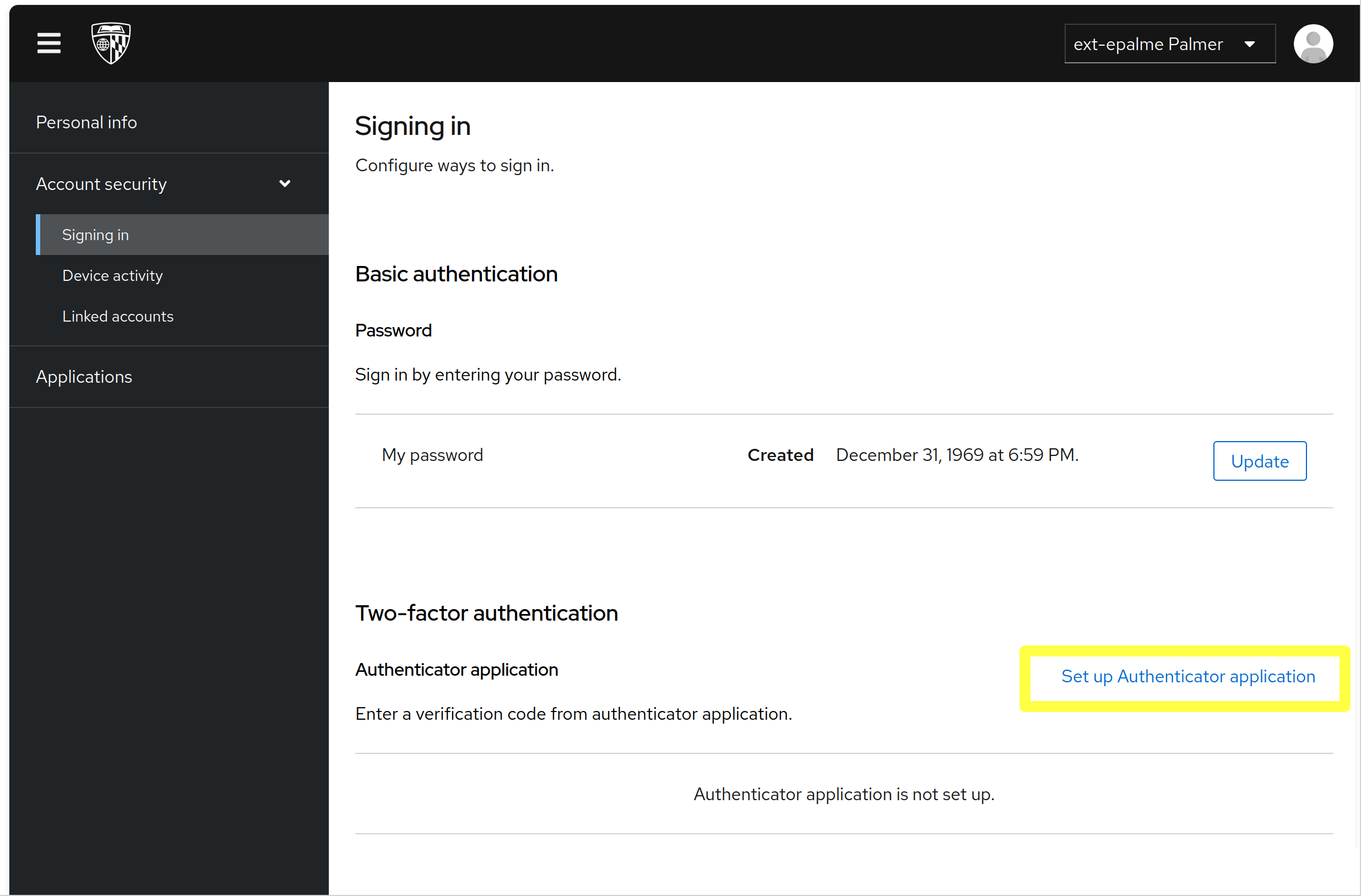
On the next screen, find the “Set up Authenticator application” link in the bottom right.
Click the Set up Authenticator application link.
On the Mobile Authenticator Setup page, follow the steps to set up a One-Time Password (OTP) device.
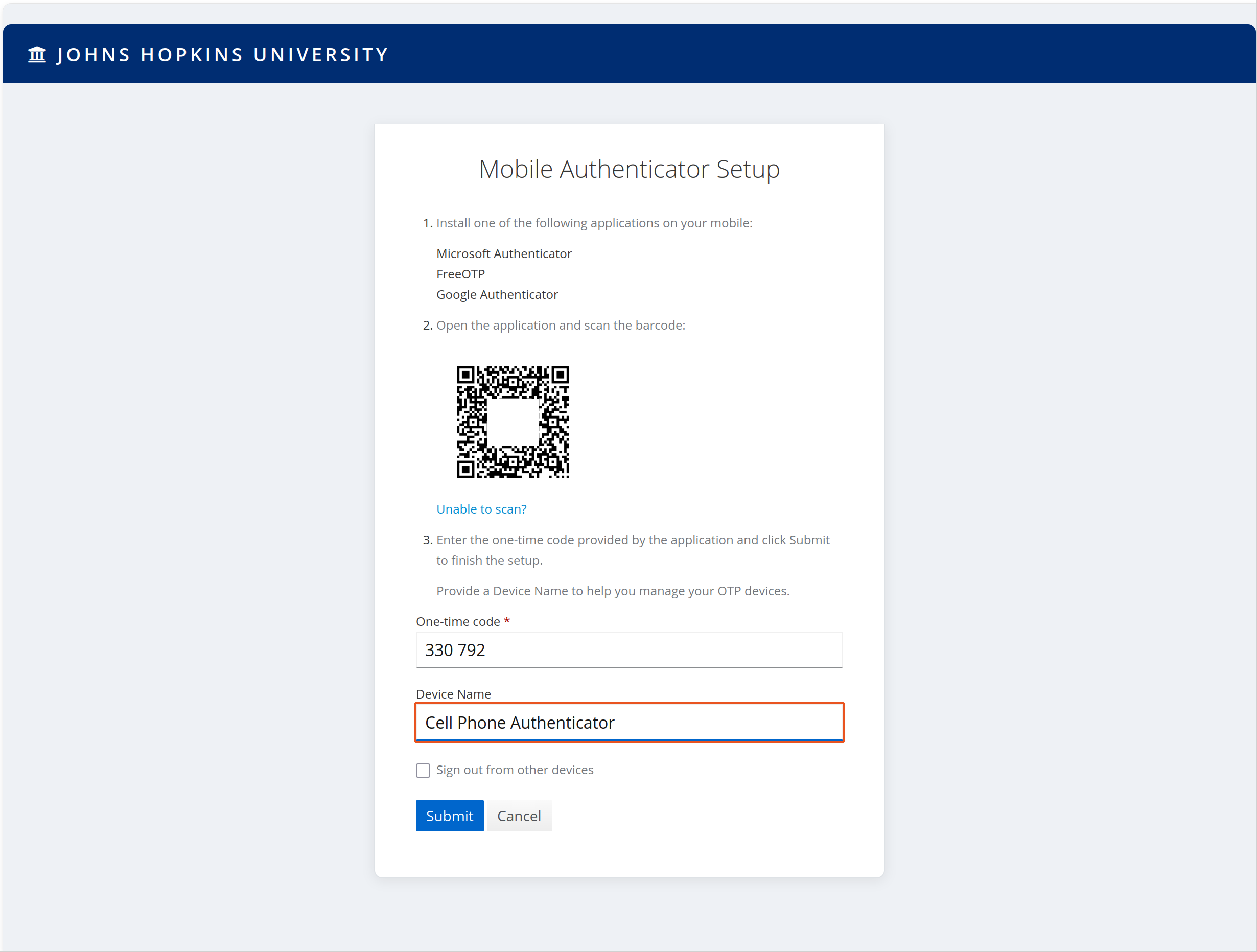
Install one of the following:
Microsoft Authenticator


FreeOTP
Google Authenticator
Using your chosen authenticator app, scan the barcode. Enter the 6-digit code in the box to confirm synchronization.
Optionally, you can give the device a name for easier record-keeping.
Click Submit before the 6-digit code expires to validate the setup.
Reset Password
If you forgot your password and cannot log in to the ARCH Portal, you can send yourself a password reset email.
Warning
Users added as part of a class cannot reset their password using this method. Instead, please reach out to help@arch.jhu.edu.
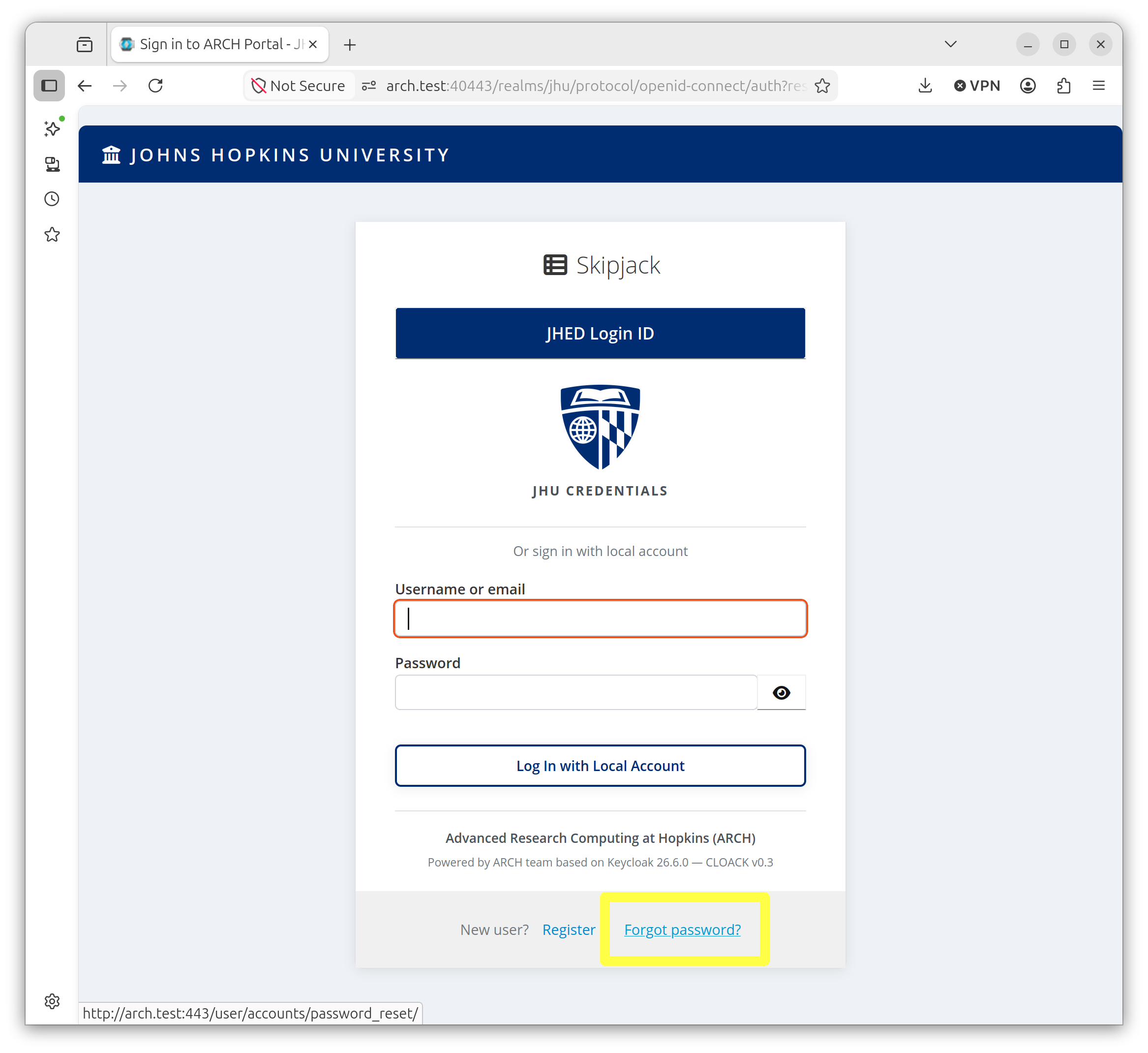
From the login screen, click the “Forgot Password” link.
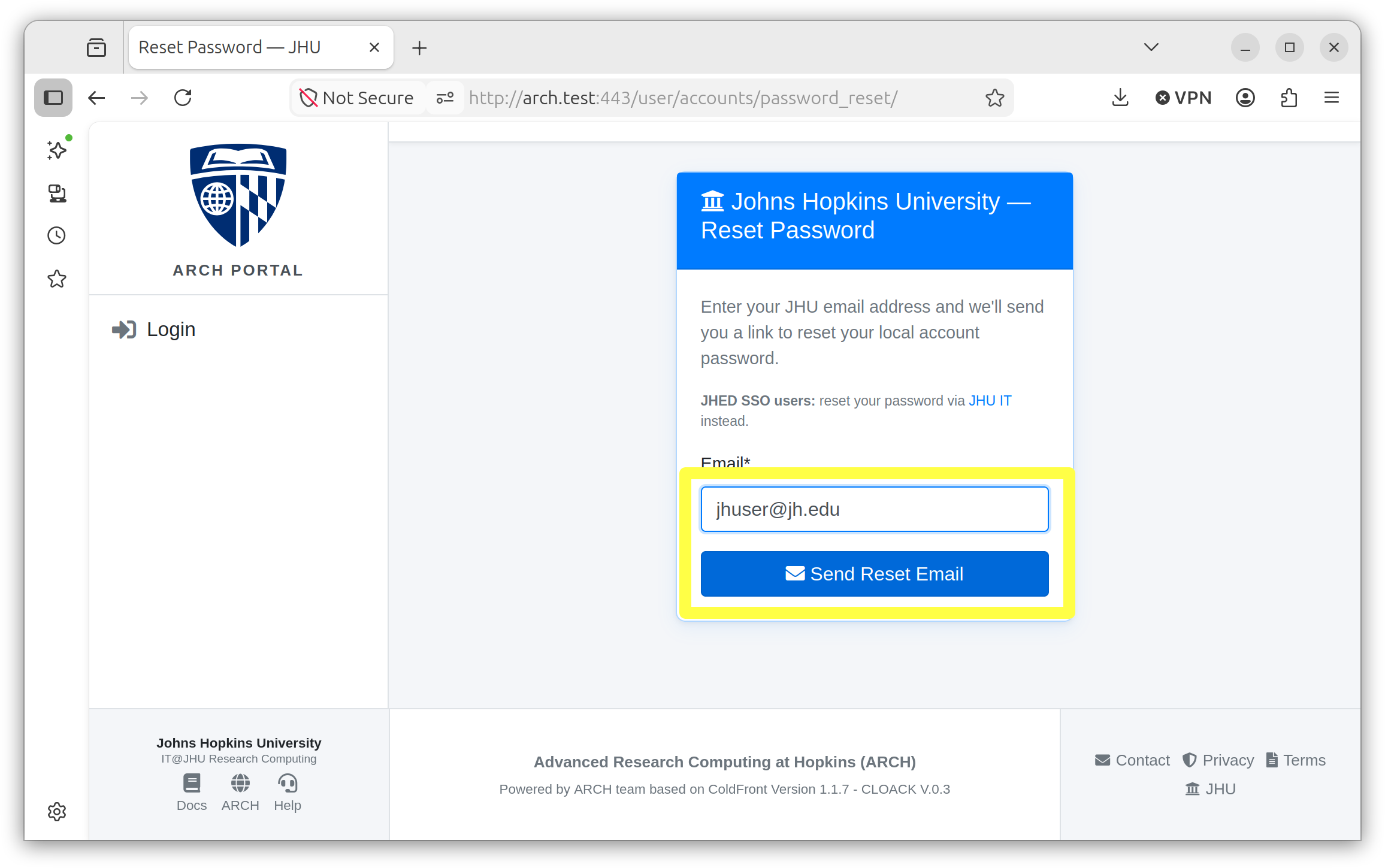
Enter your email address.
JHU users should enter their JHU email address. External users can enter the email address used to set up their external account.
Click Send Reset Email.
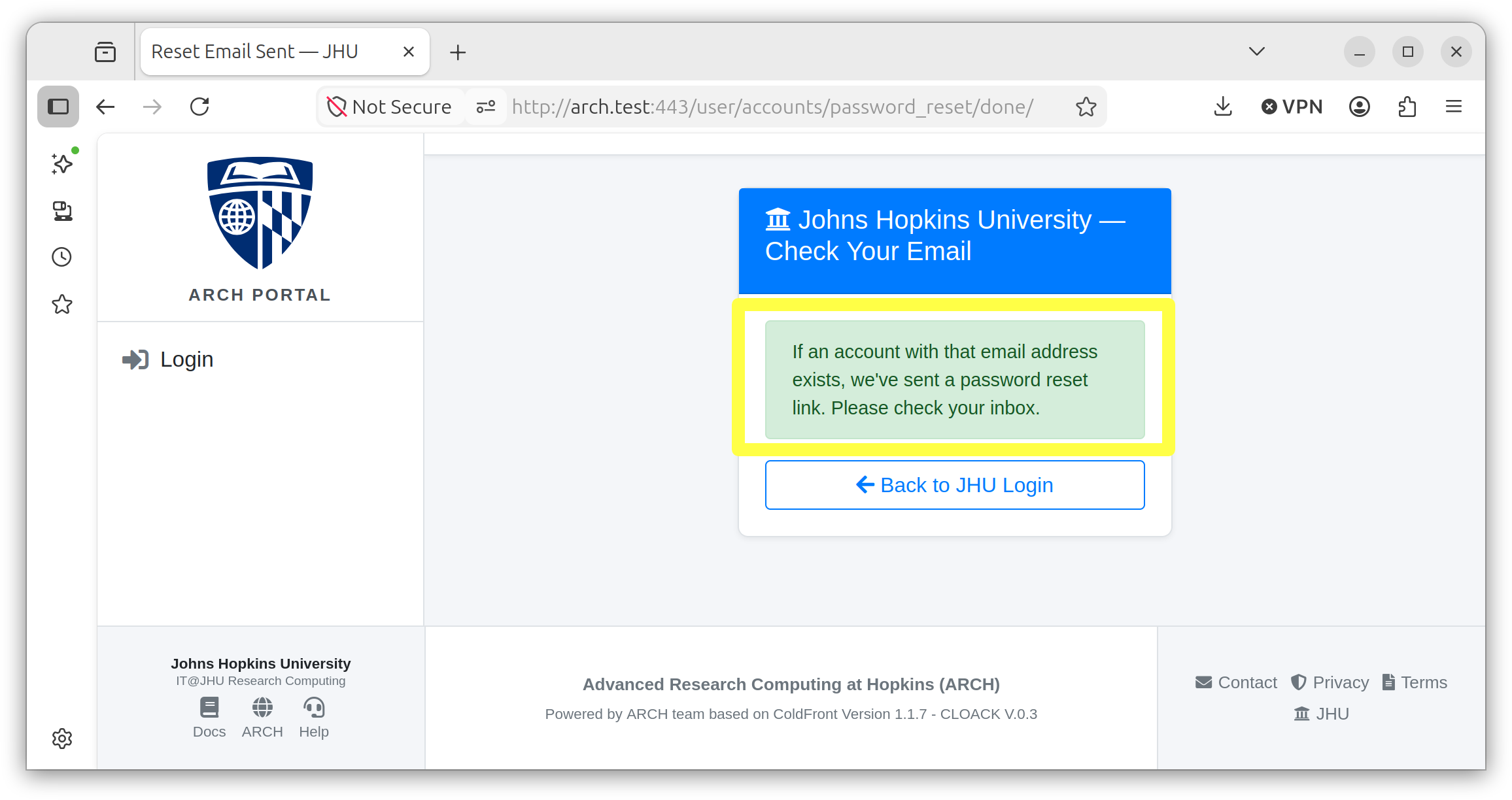
A confirmation screen will appear, indicating that a password reset email has been sent.
Connect to the Skipjack Cluster
ssh <YourUserID>@login.skipjack.jhu.edu
OTP
A One-Time Password (OTP) is required to log in to Skipjack.
After you successfully enter your password, you’ll immediately be prompted to enter your OTP code. Enter the code from the OTP app you used.
Note
If it is your first time connecting, you’ll be asked to verify the host key. Once verified, type yes at the prompt, then enter your Skipjack password.
Create a Help Ticket
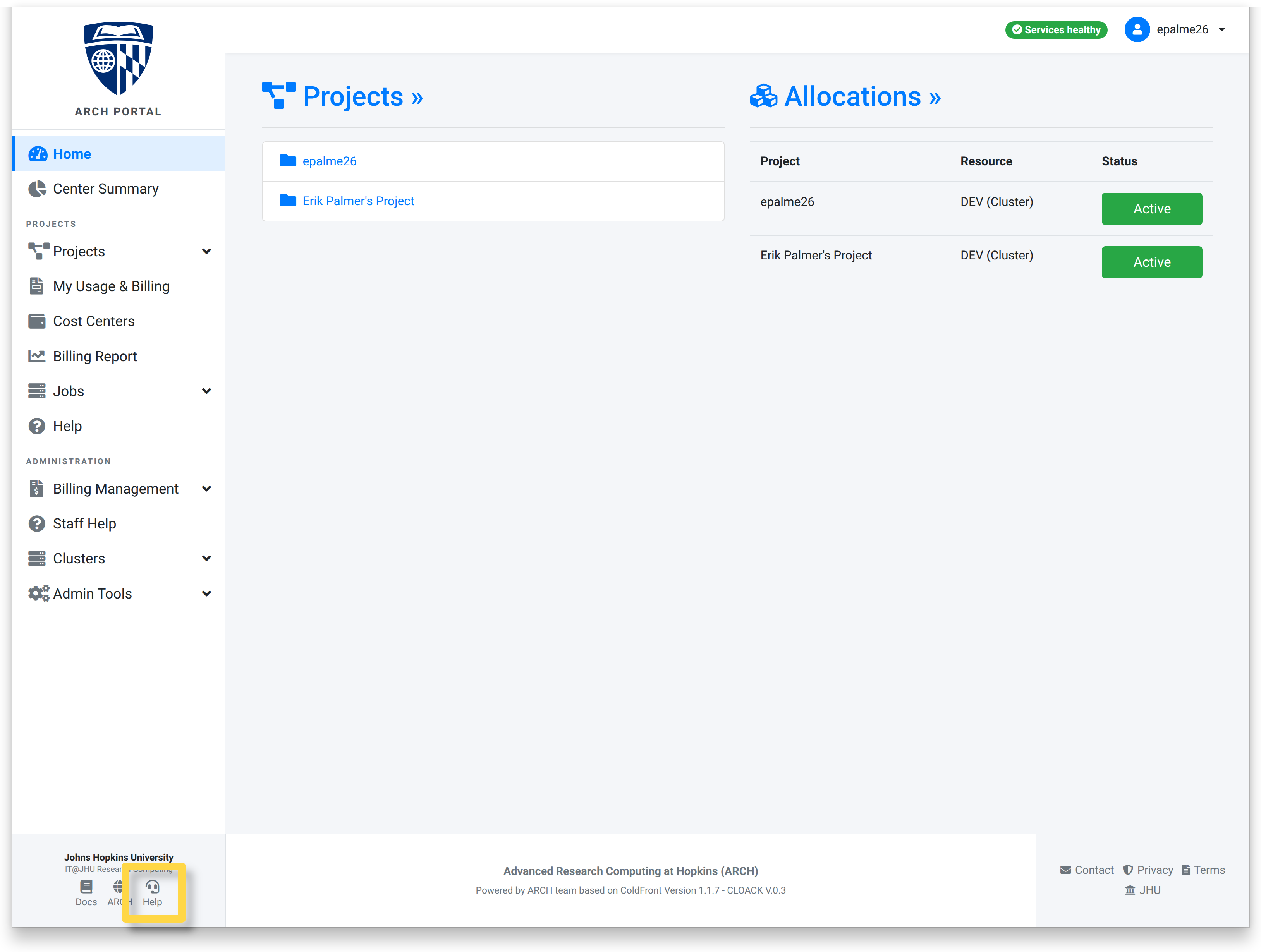
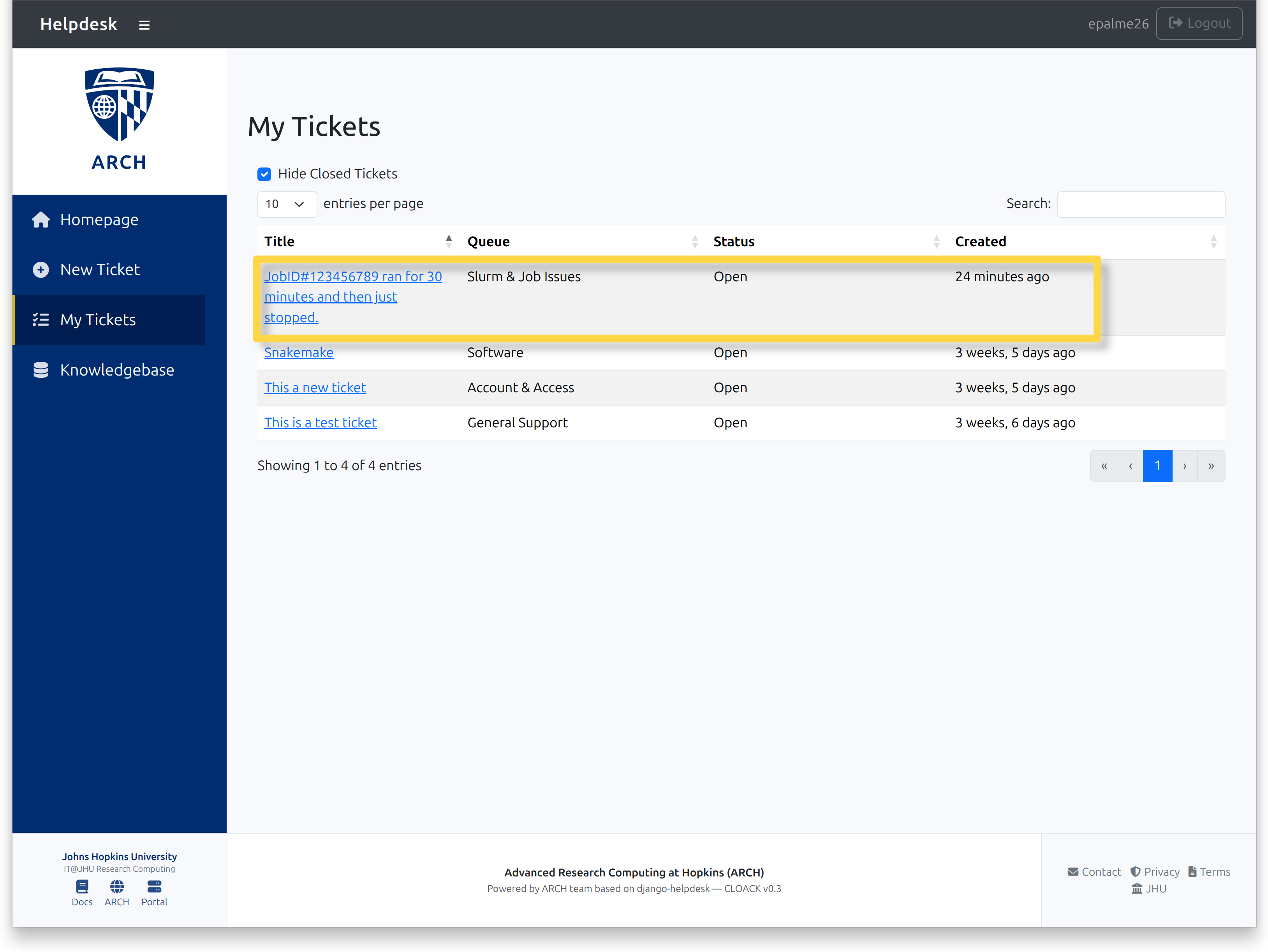
To create a support ticket from the Arch Portal, first navigate to the Helpdesk.
Click the “Help” icon in the lower left corner.
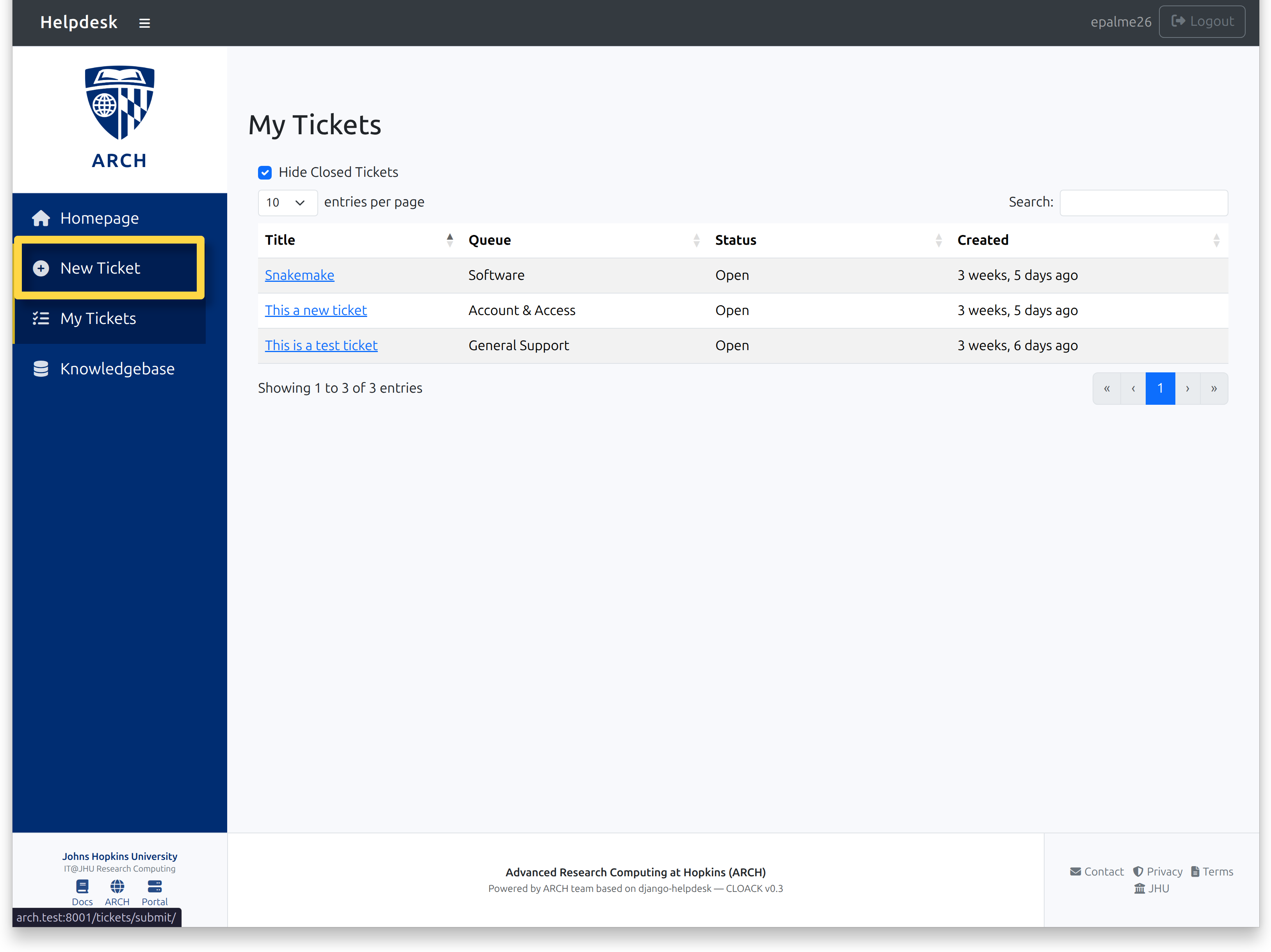
At the Helpdesk, click “New Ticket” in the left navigation pane.
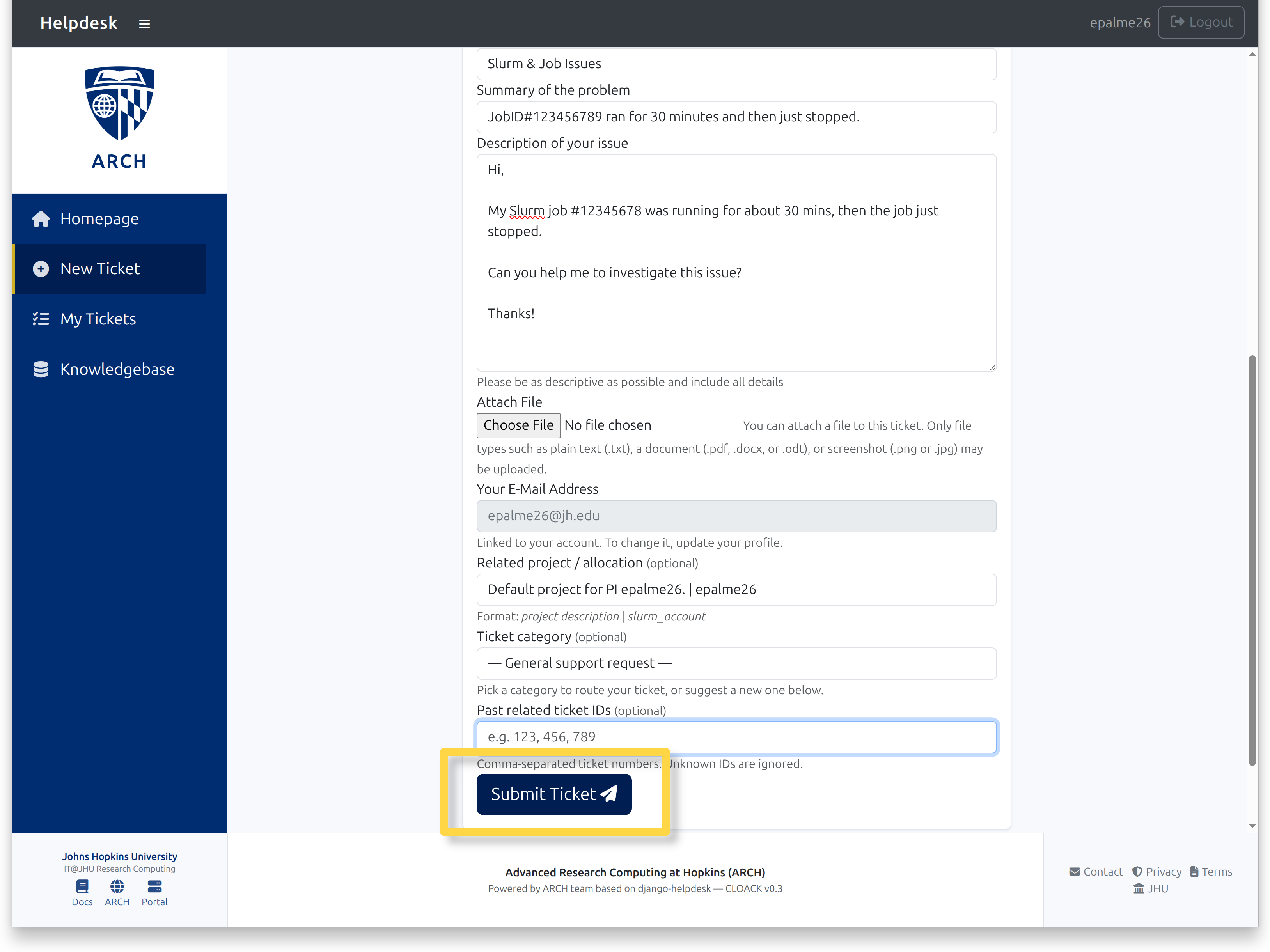
Fill in as much information as possible.

When complete, click “Submit Ticket”.
The new ticket will appear at the top of the table when you return to the help desk screen.
Principal Investigators
Request Account Upgrade to PI
Note
This section is for Principal Investigators actively conducting research with Skipjack.
Principal Investigators (PI) on Skipjack can request to have their account upgraded to PI status. Requests are reviewed by staff. When an account is upgraded from User to PI, a default project is created and associated with the requesting PI.
To request an account upgrade to PI:
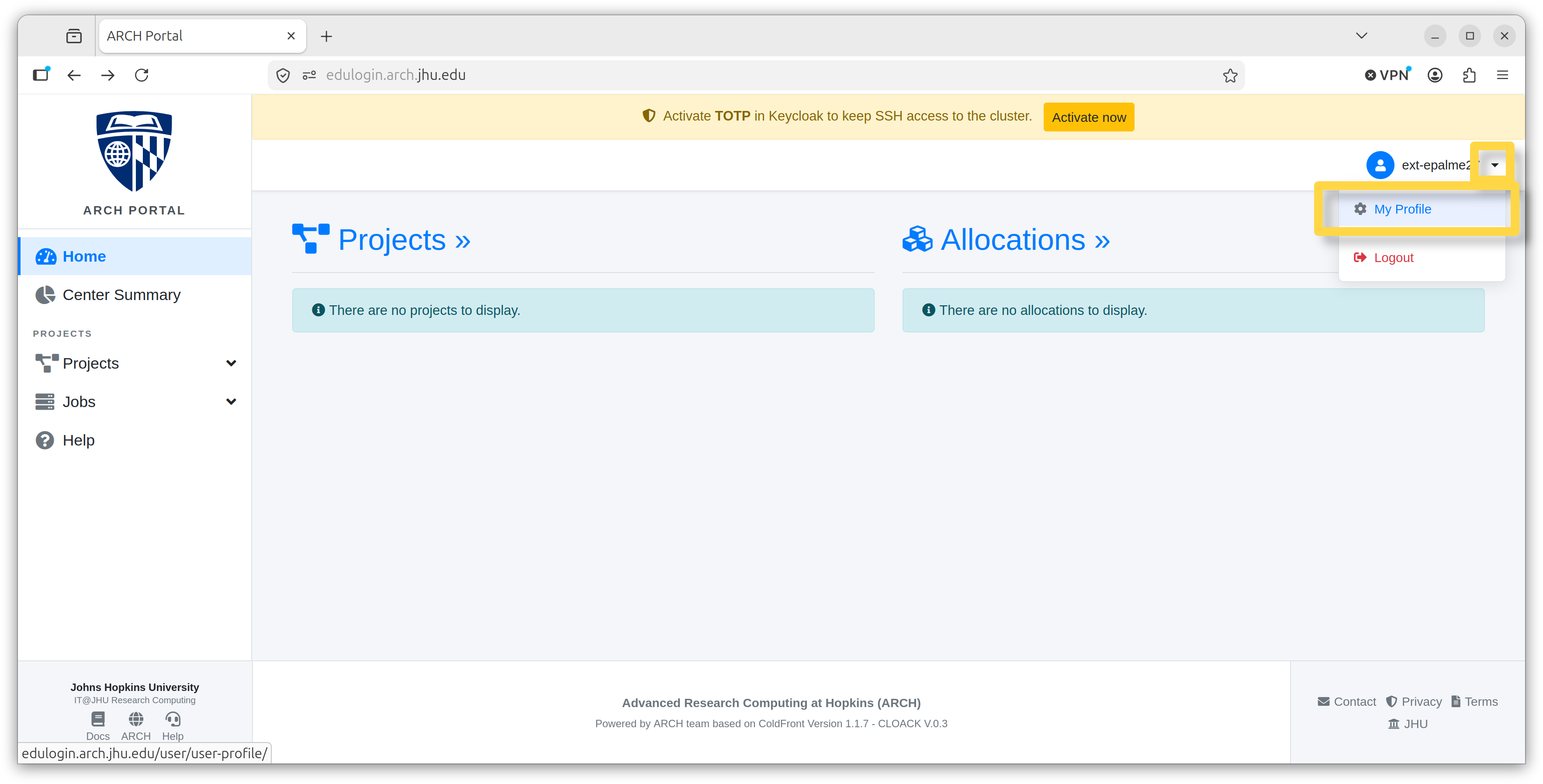
In the Arch Portal, click on the dropdown menu in the upper right next to the username and icon. Select My Profile.
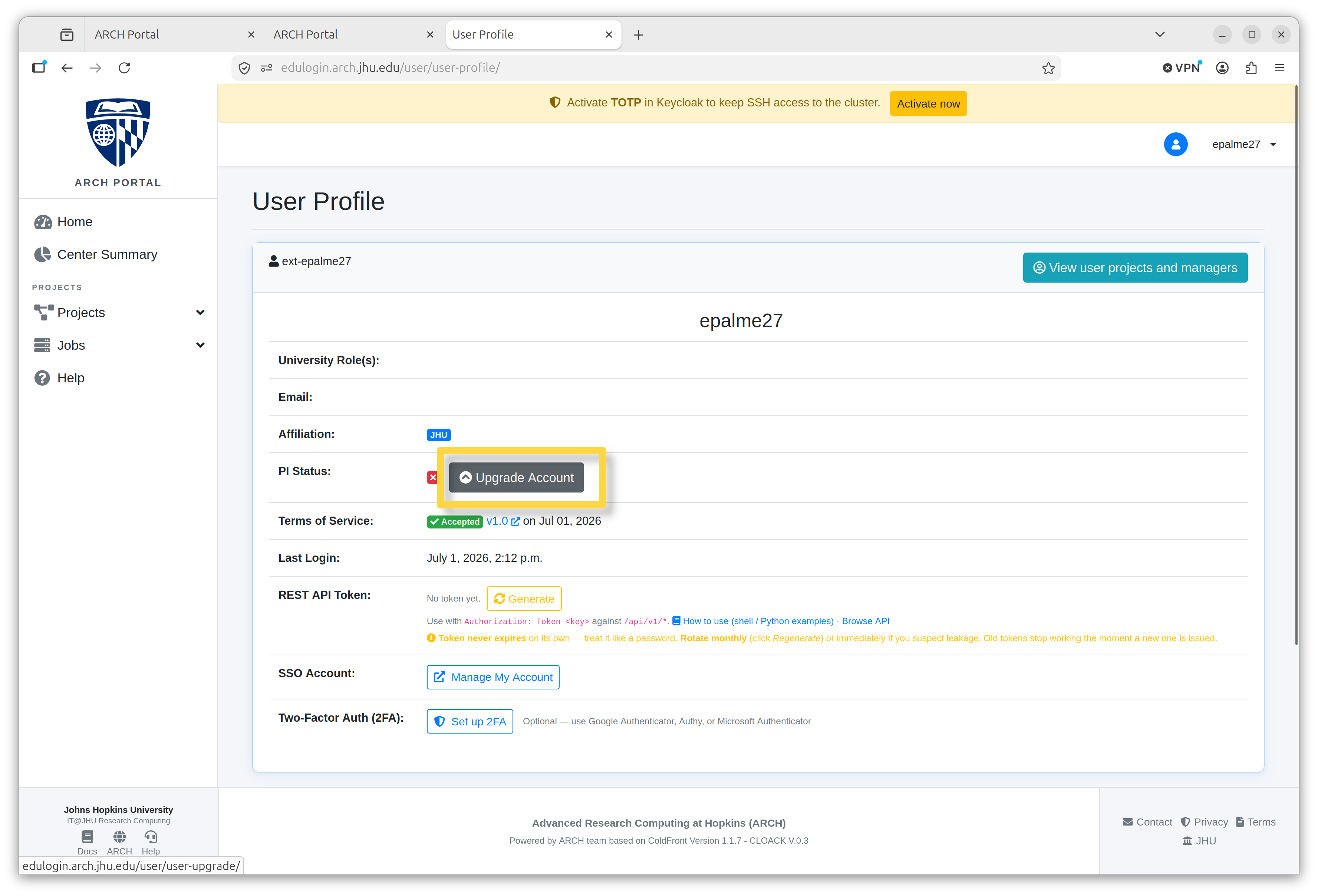
Click on the grey Upgrade Account button.
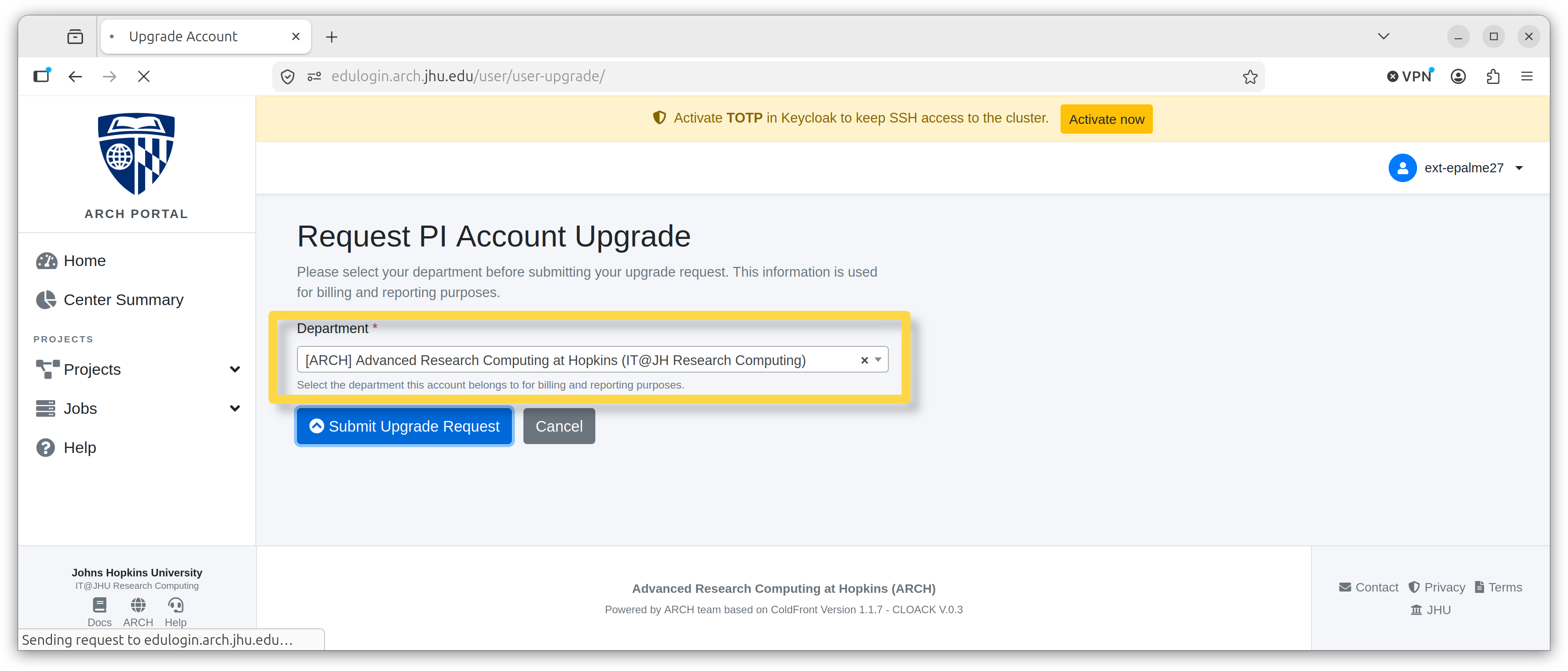
Select a department from the dropdown menu and click Submit Upgrade Request.
Once the request is submitted, a confirmation banner will appear at the top of the page.
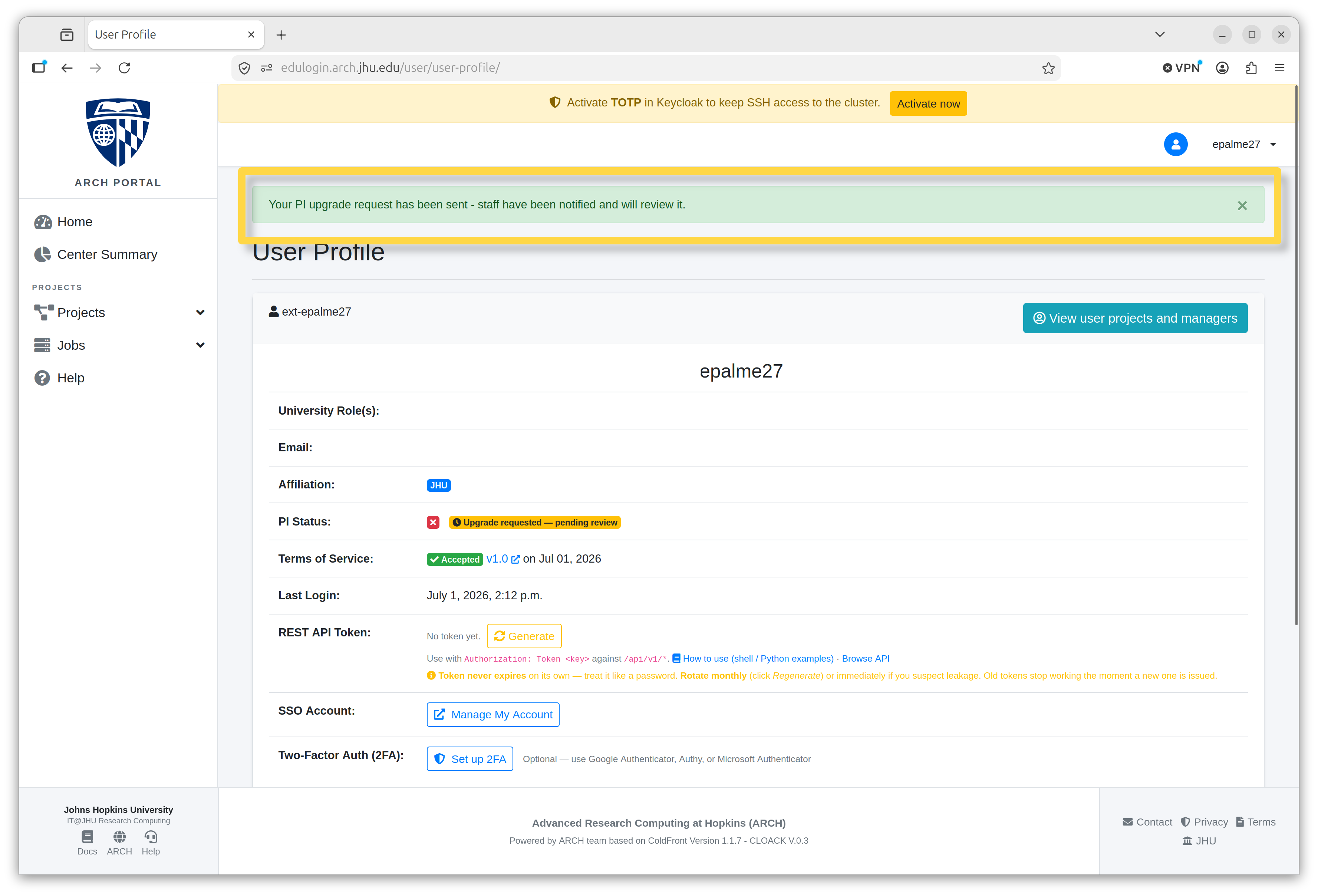
When a request is made, a notification is sent to staff to review. Your request will remain in the pending state until it is approved.
Add a Cost Center
Note
Only PIs can add a cost center.
In the left navigation pane, select Cost Centers.
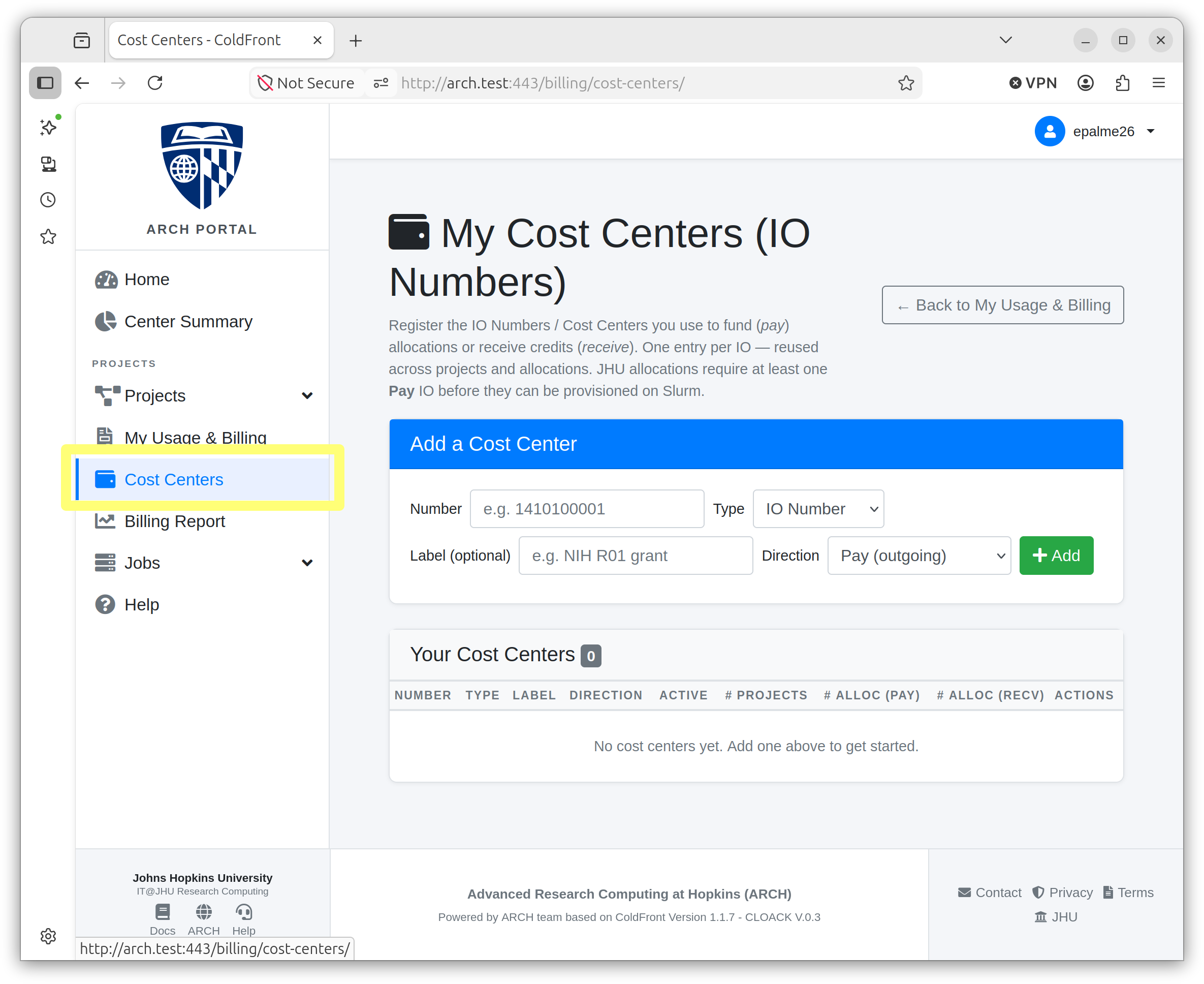
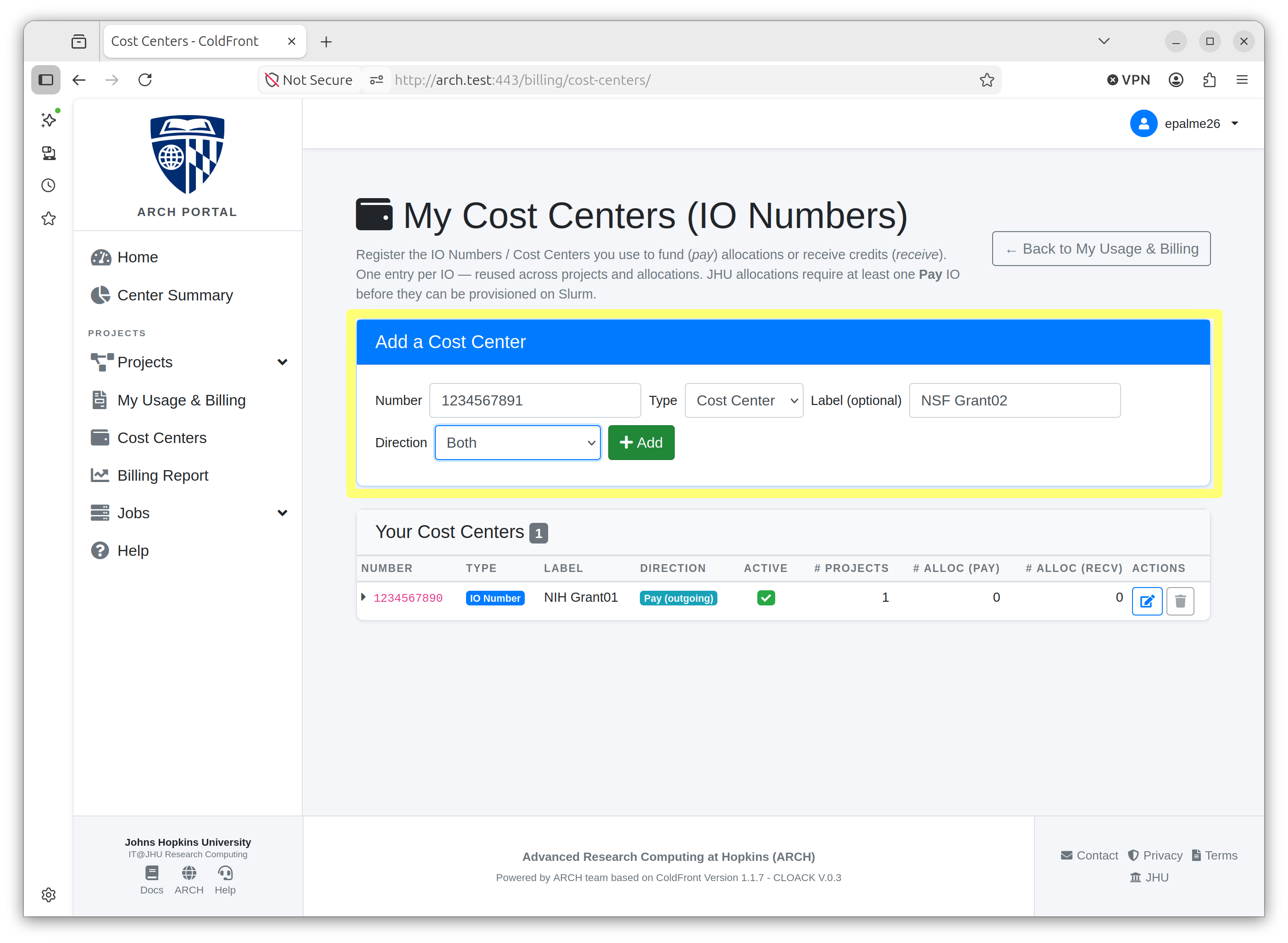
Fill out the required information and click “+ Add.”
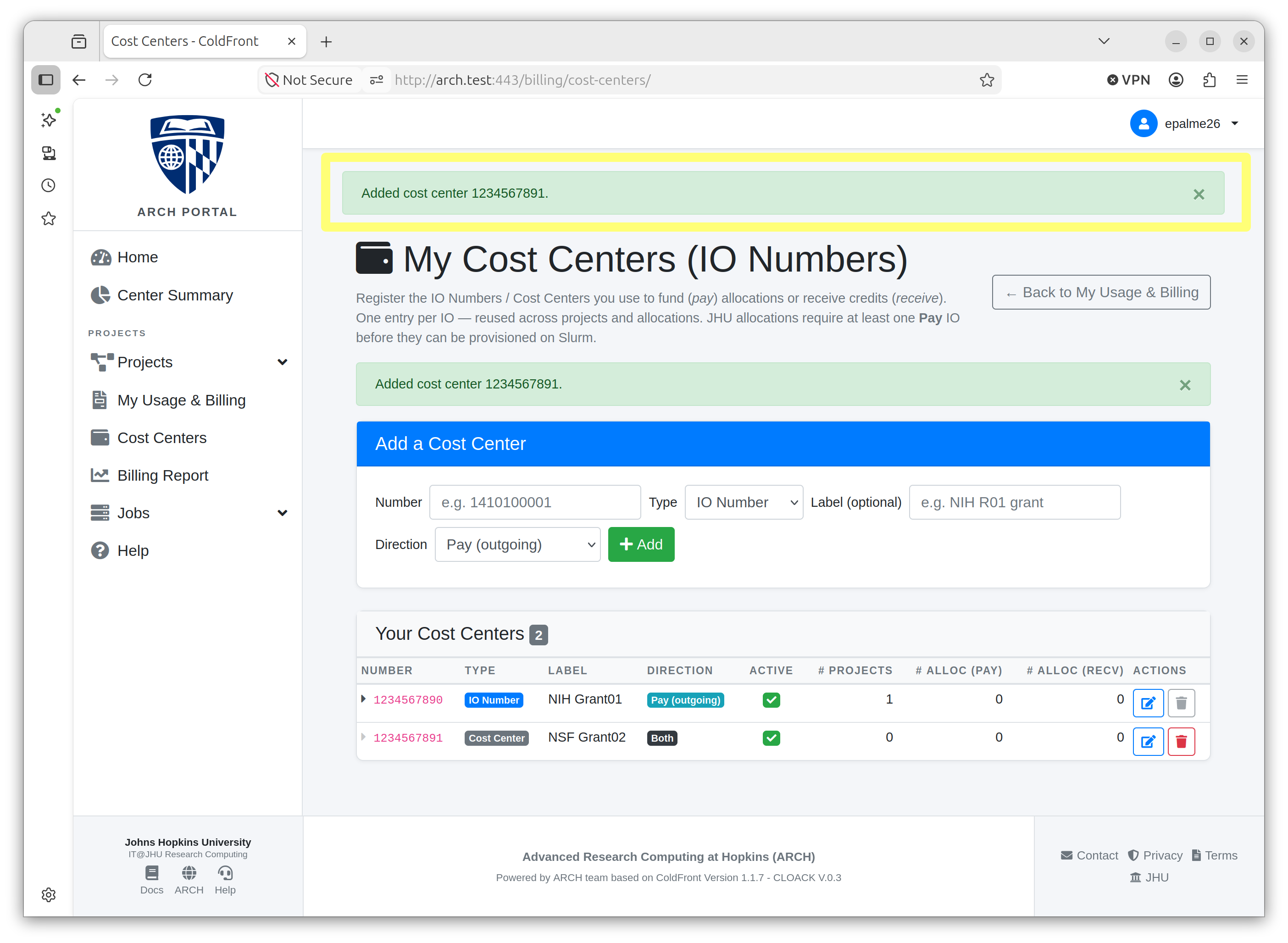
A confirmation banner will appear.
Create a Project
Note
Only PIs can create a project.
Before starting, if you are creating a JHU-affiliated project, you need to first create a Cost Center (see Add a Cost Center above).
In the left navigation pane, select Projects -> My Projects
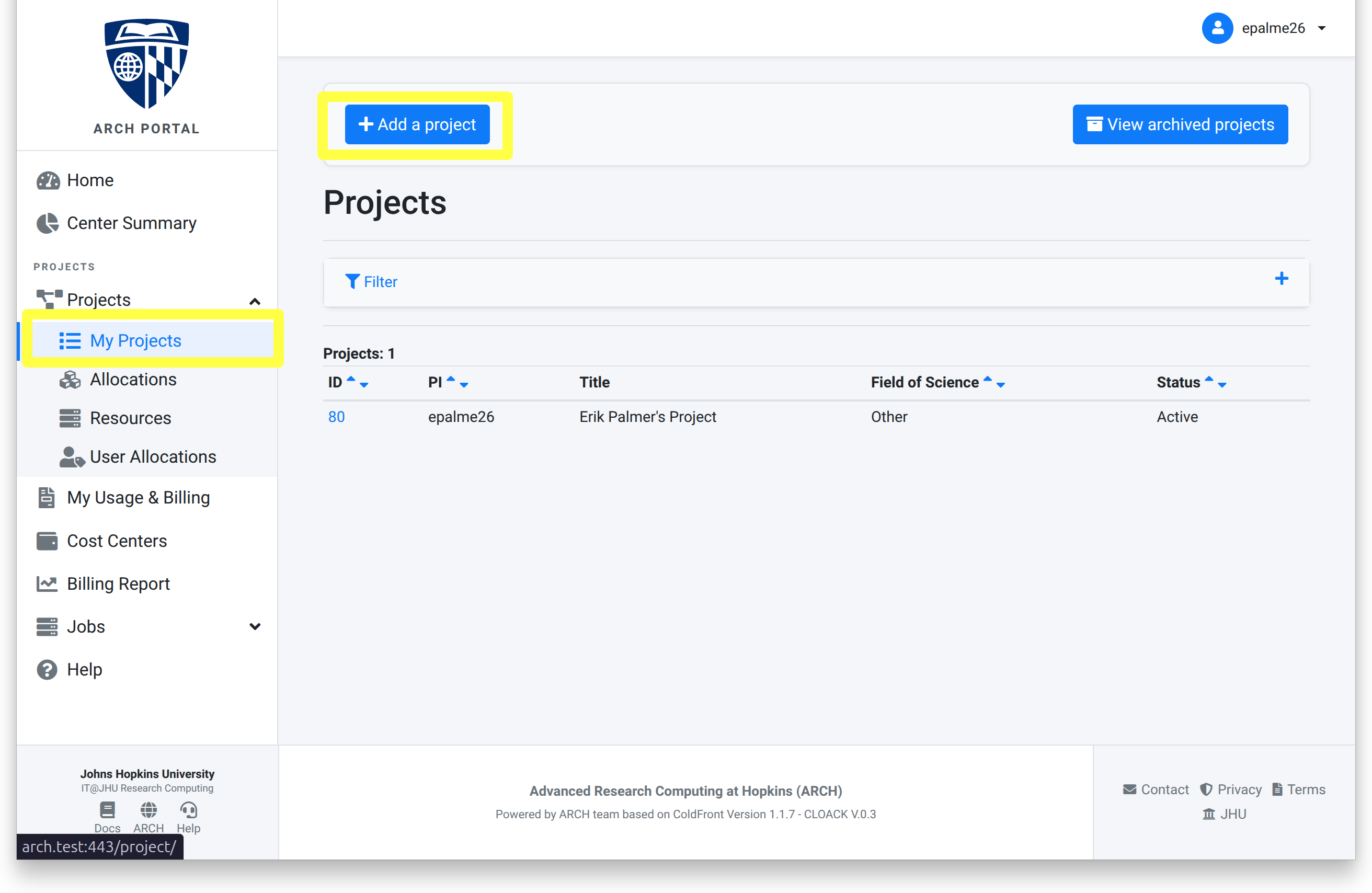
To start the process, click + Add a project.
Fill in the required information.
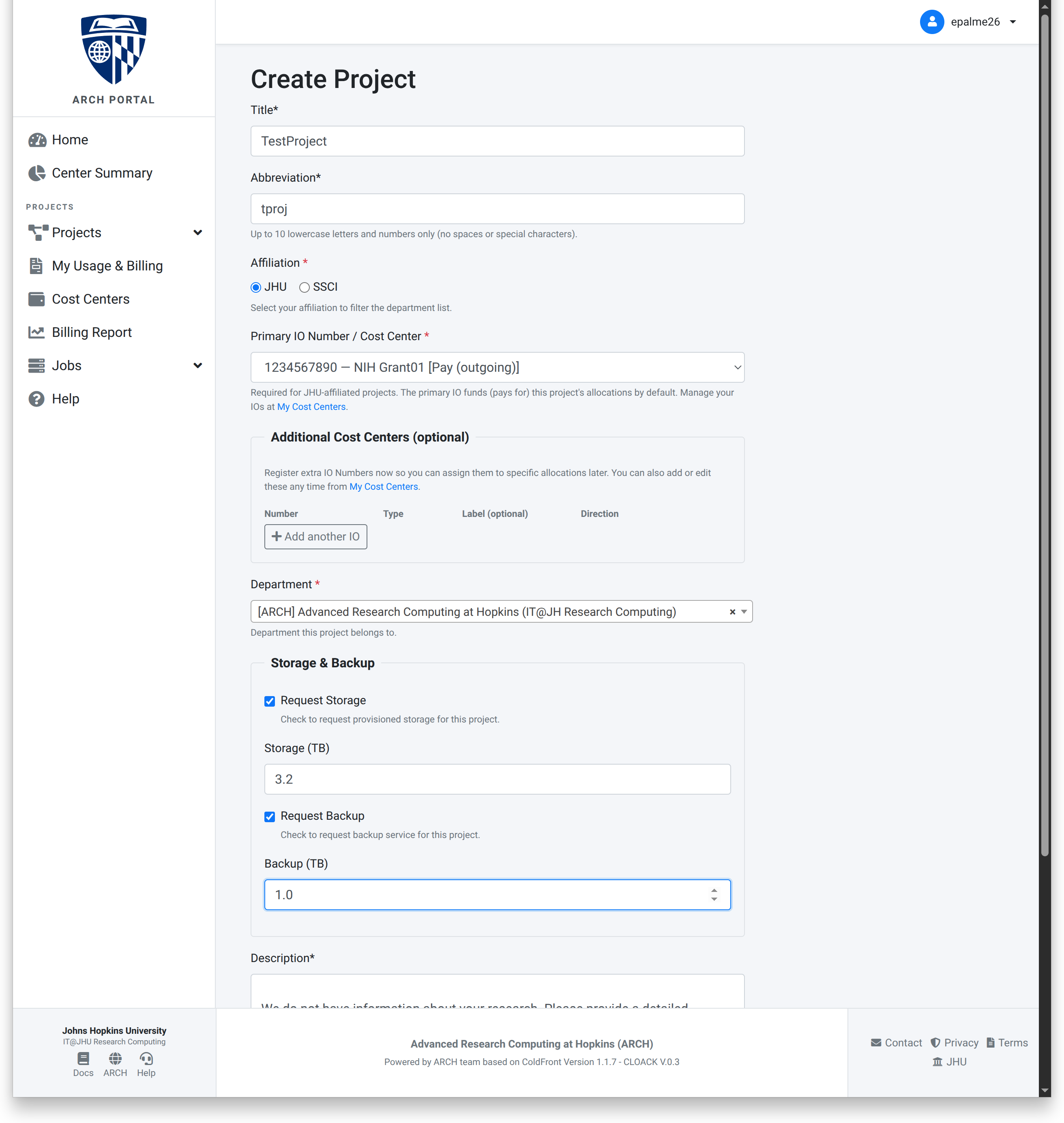
Click Save to submit the project.
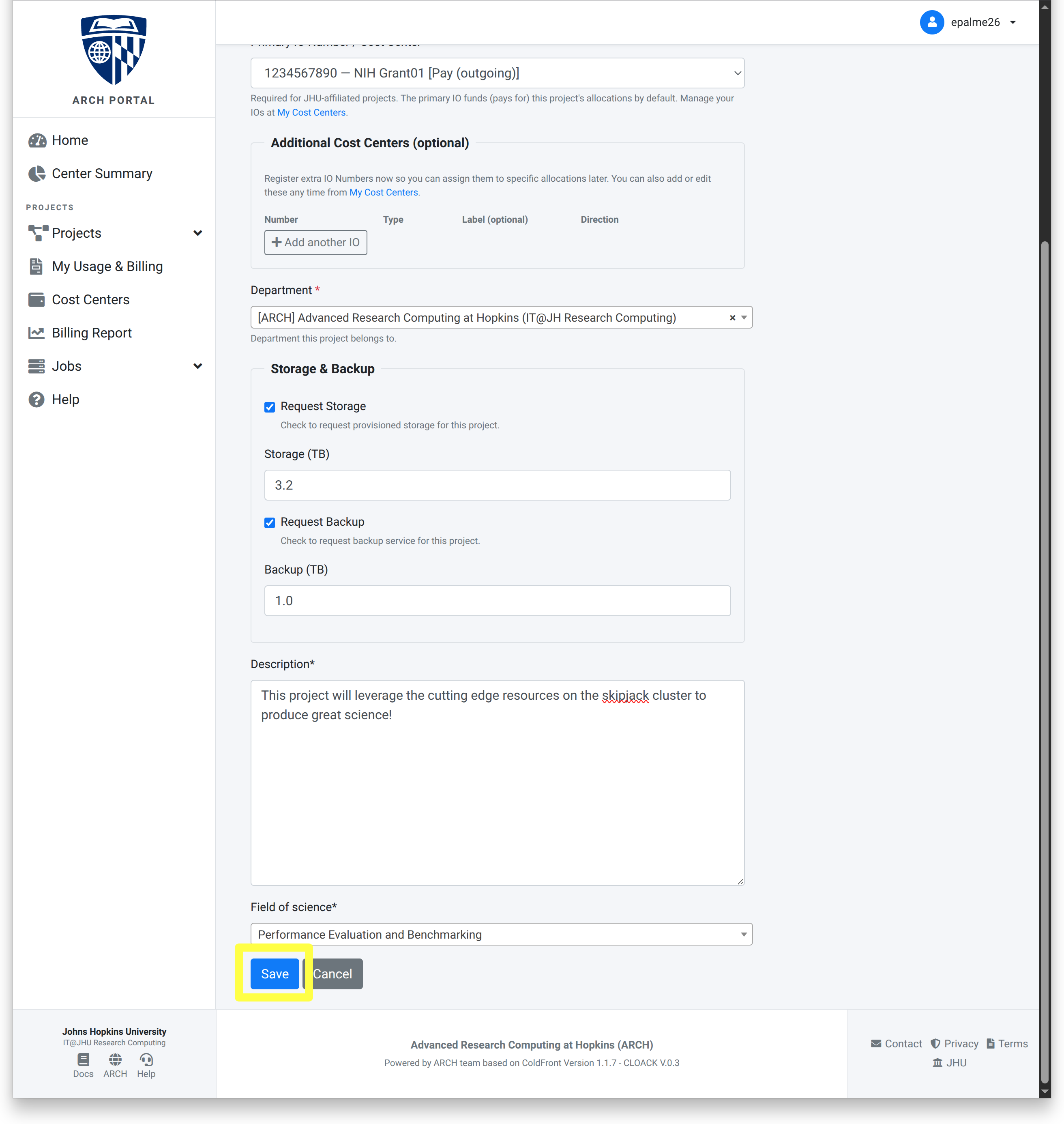
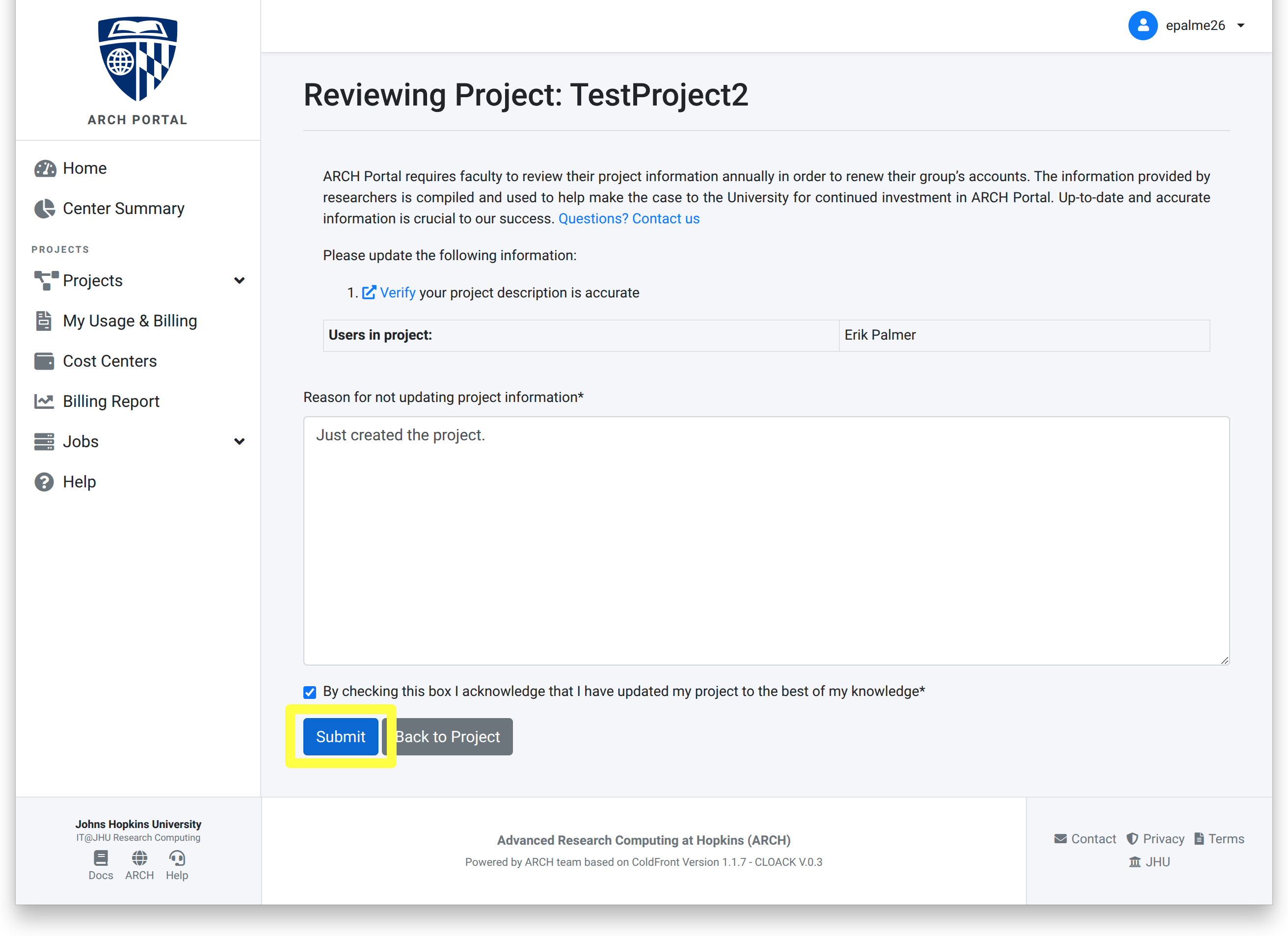
Once the new project is created, you will be prompted to review the project.
Click the link to initiate the review.
Once your review is complete, check the acknowledgement box and click Submit.
Once complete, a “Project reviewed successfully” banner will appear.
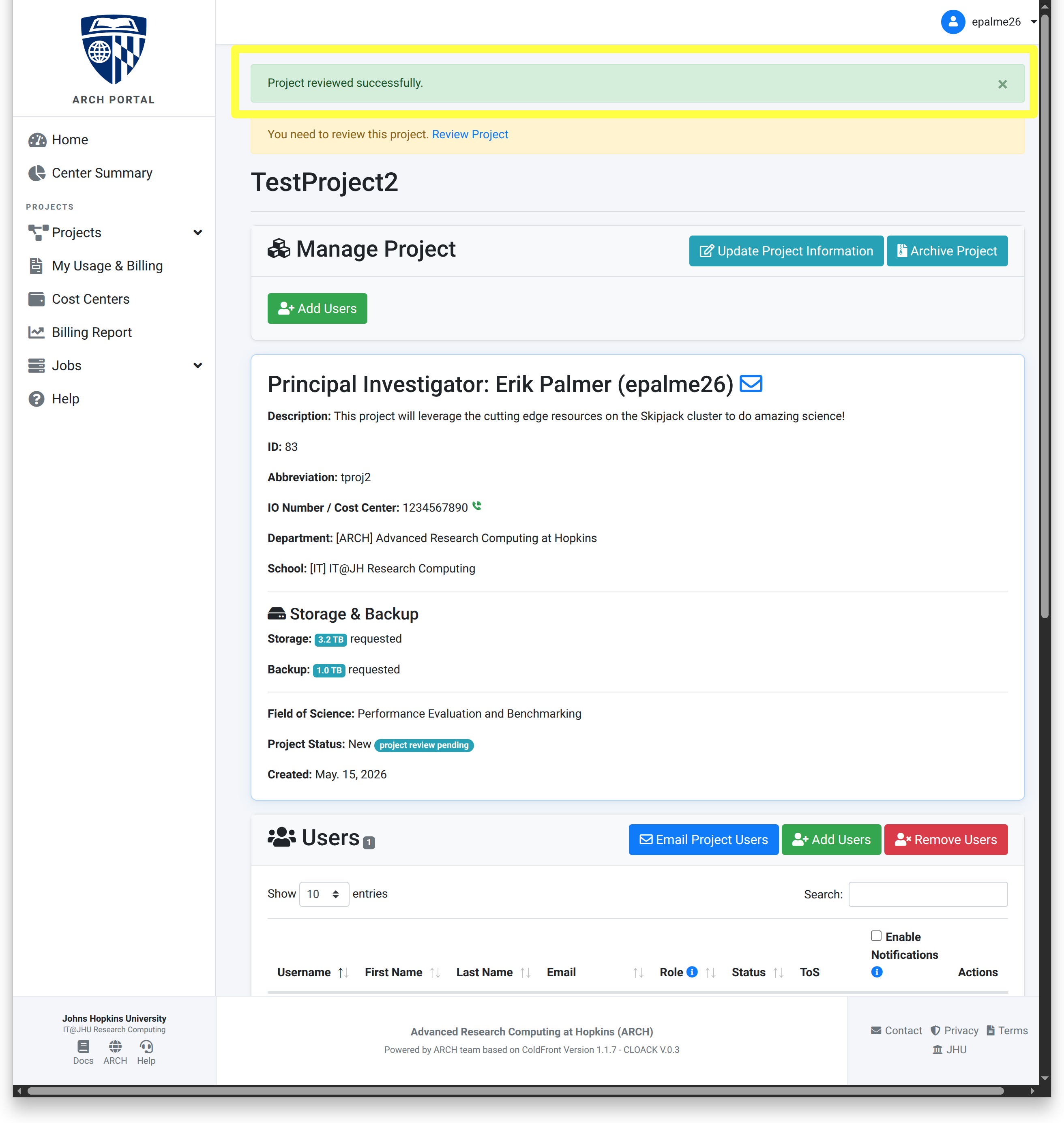
At this point, the project needs to be reviewed and approved by a staff user before an allocation can be requested.
Create an Allocation
Note
This section is for PIs with an approved project.
Once a project is approved, a resource allocation for time on the cluster can be requested.
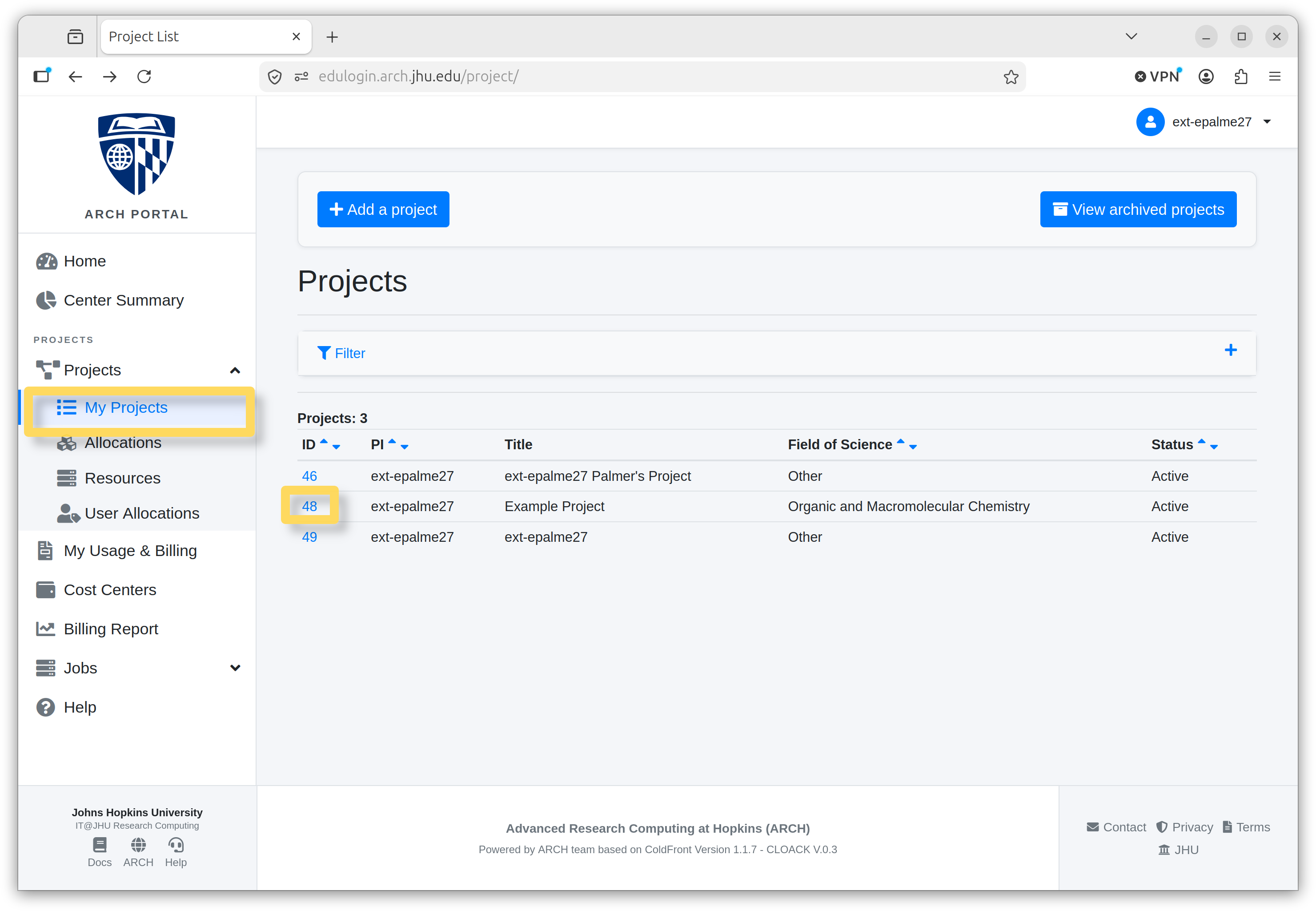
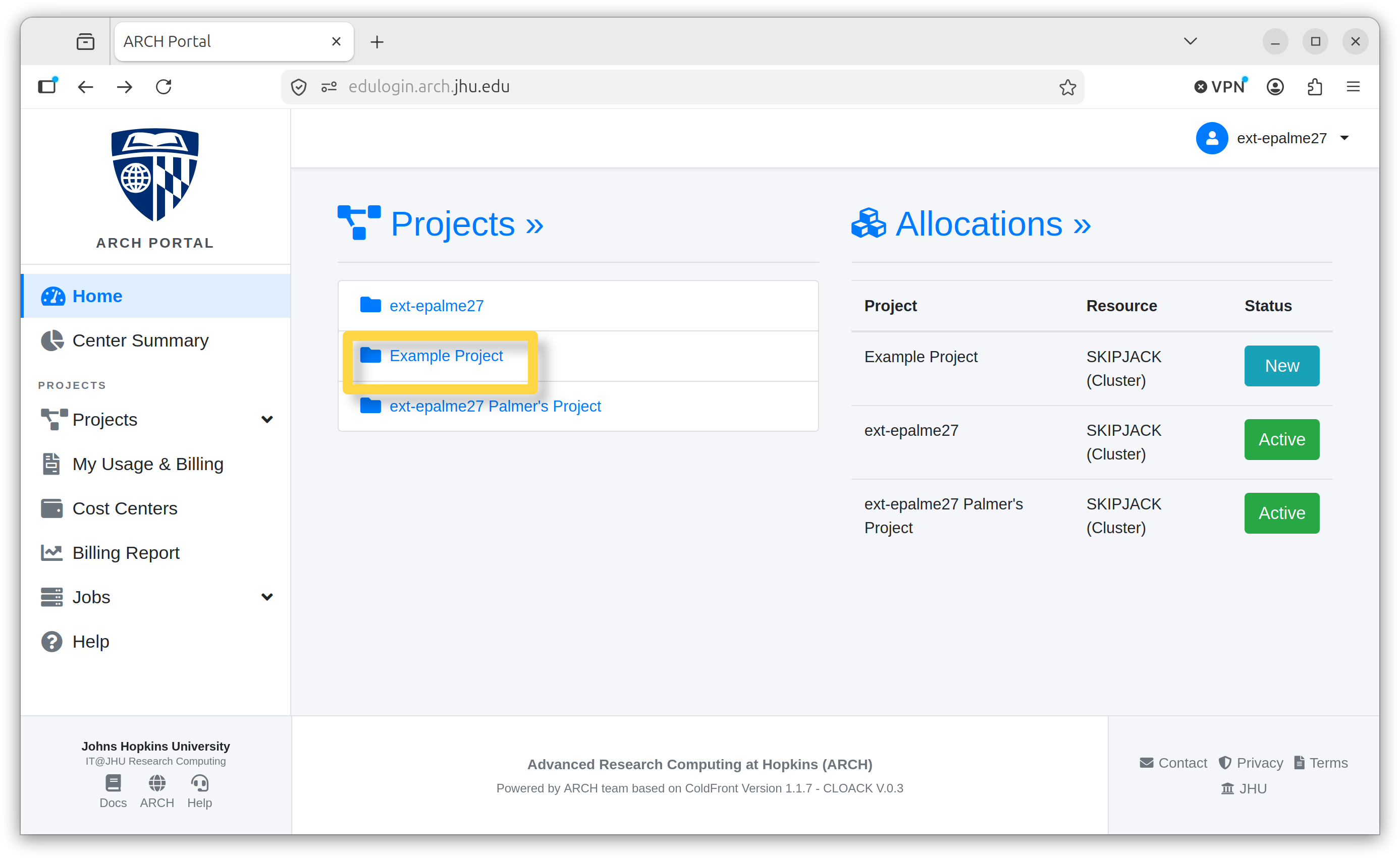
From the portal home screen, navigate to the project for which to request an allocation. You can follow Projects -> My Projects. Then select the project from the table by clicking on the number hyperlink.
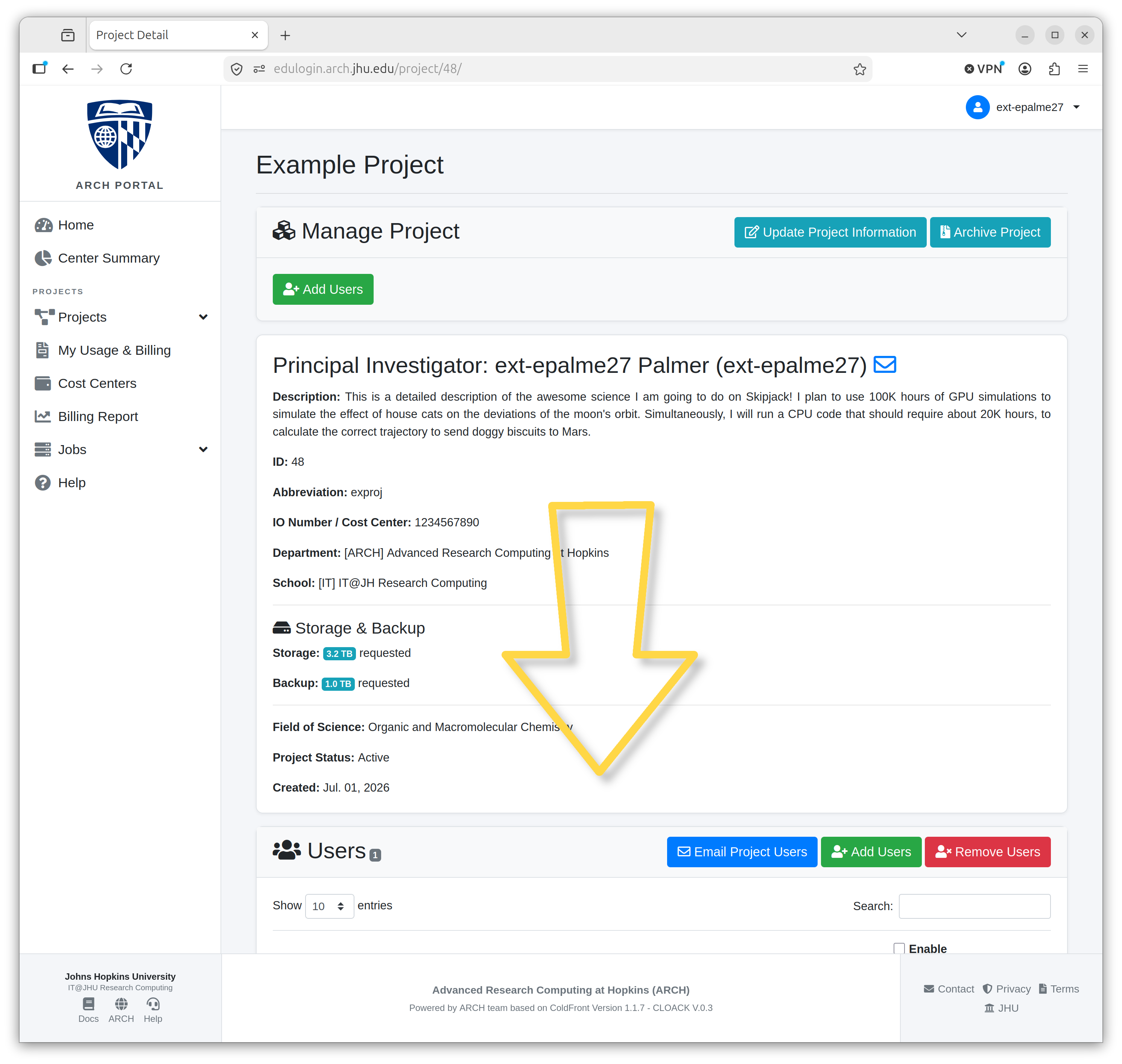
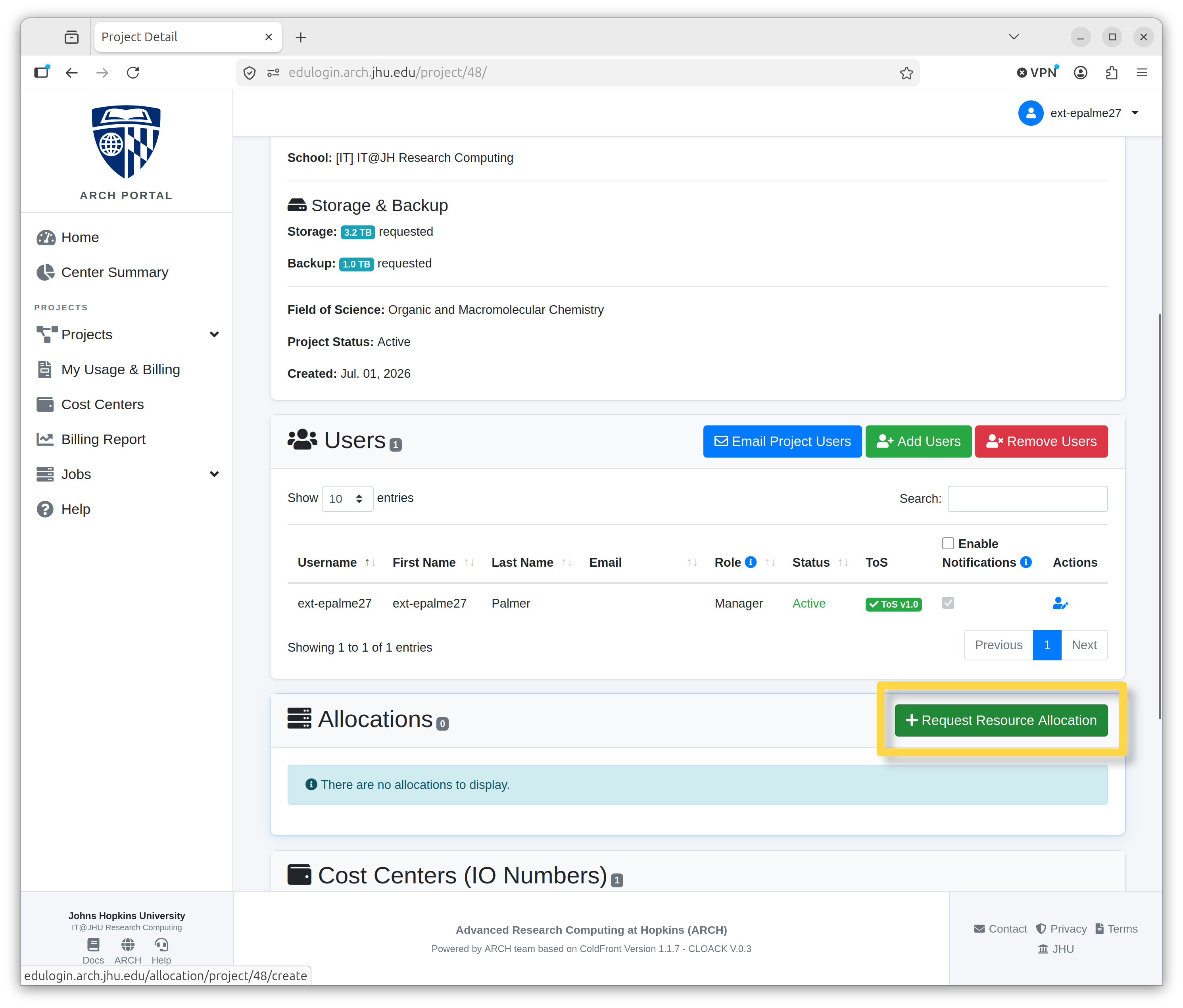
Once on the Project page, scroll down and click + Request Resource Allocation.
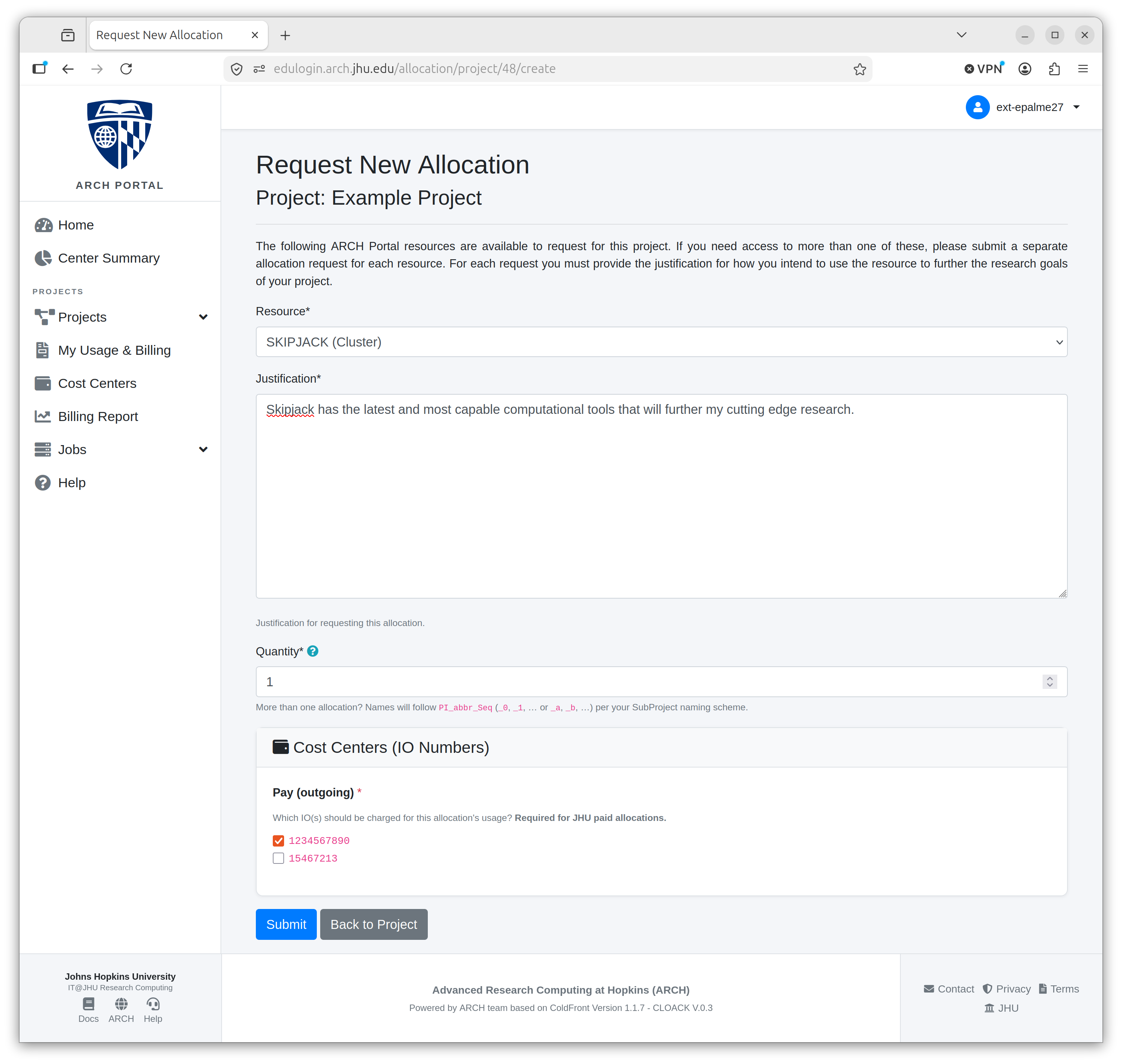
Fill out the required information and click Submit.
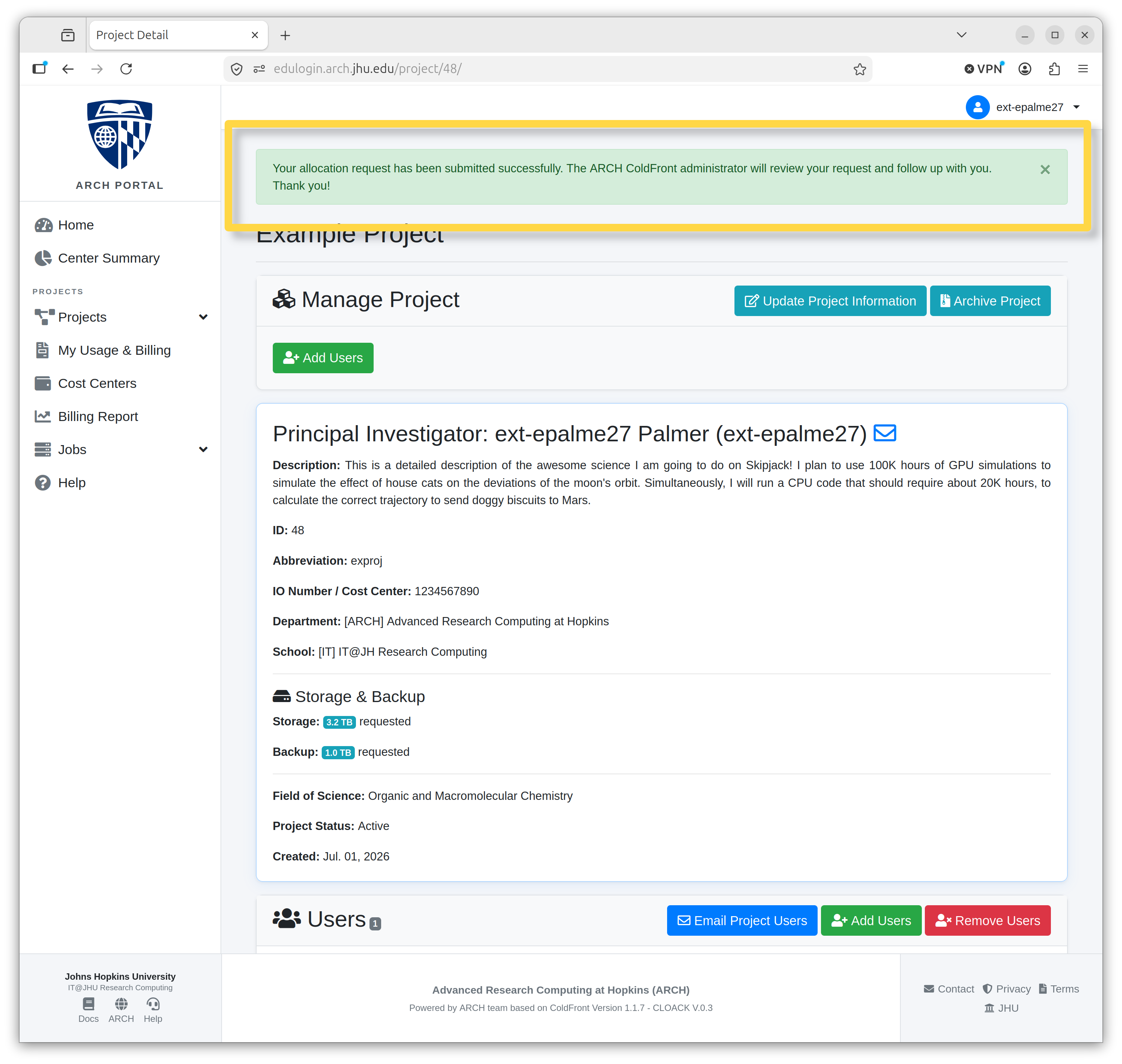
A banner at the top of the page will confirm your request has been sent.
Add Users to a Project or Allocation
Note
Only PIs and managers of the same project can add users.
Navigate to the project.
Select the project you wish to add users to by clicking on the name hyperlink.
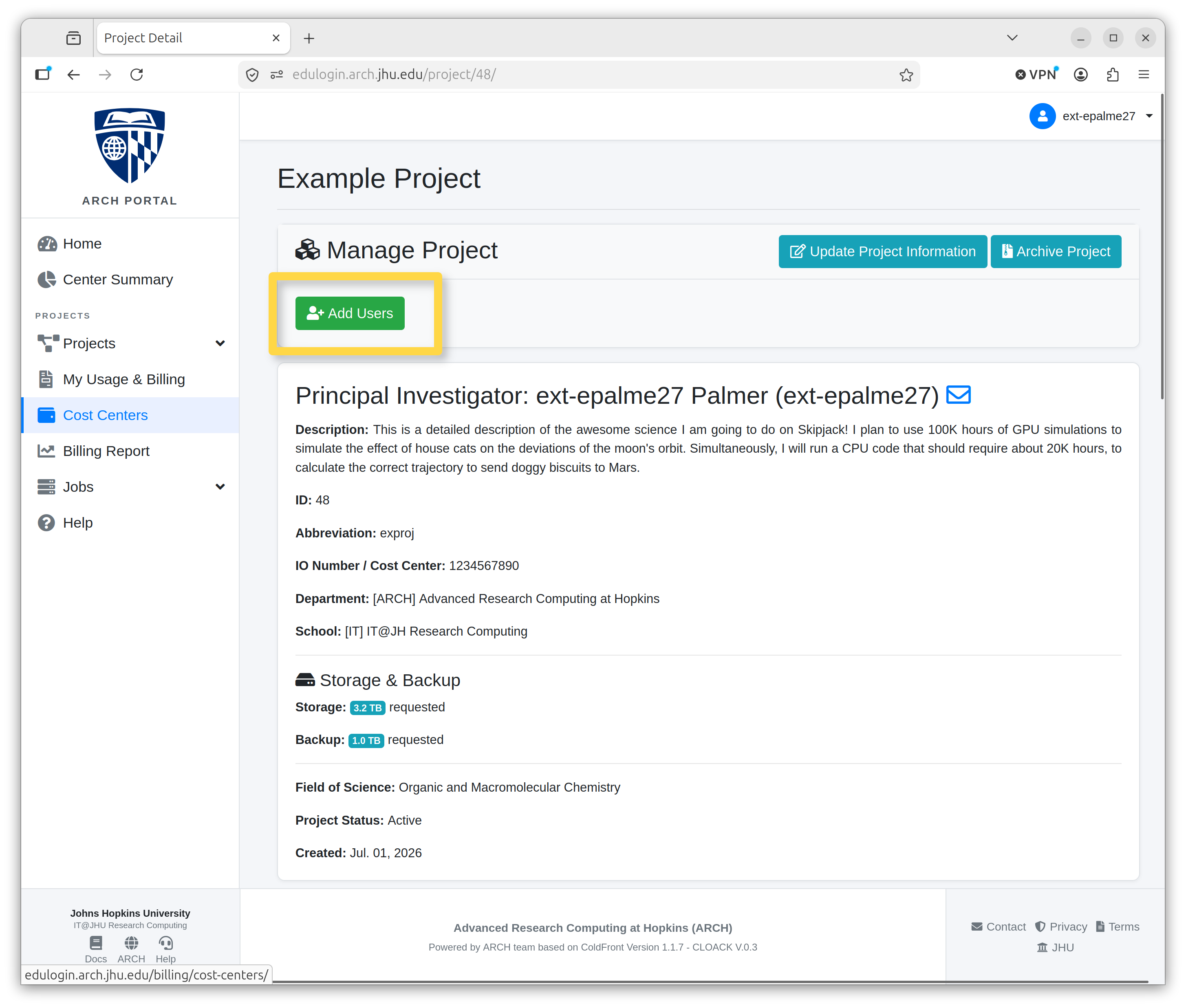
Press the green Add Users button under Manage Project.
Enter the username in the Search String field.
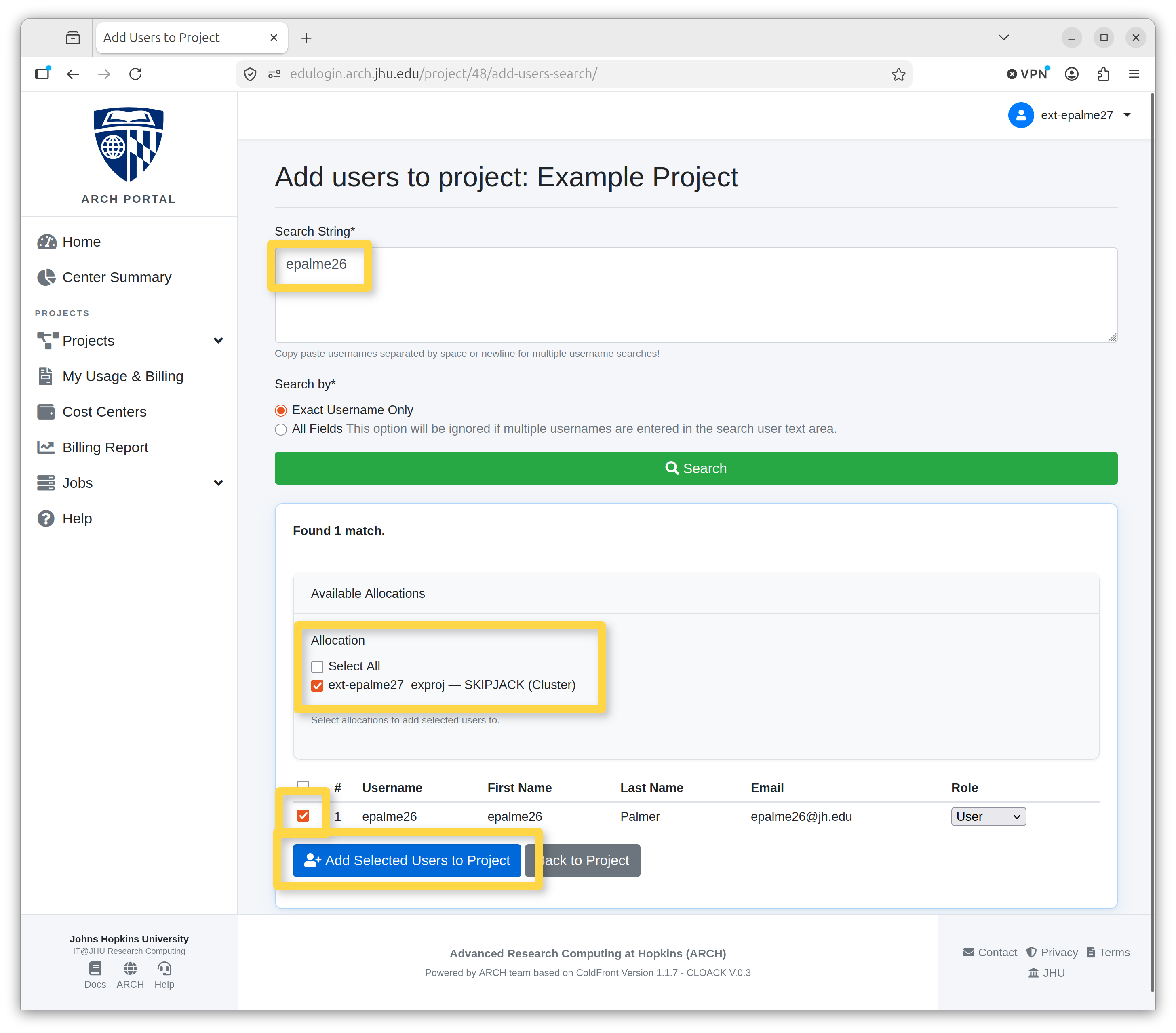
Click the green Search button to populate the found matches list. When the user is found, click the checkbox next to their username. Then click Add Selected Users to Project to add the user to the project.
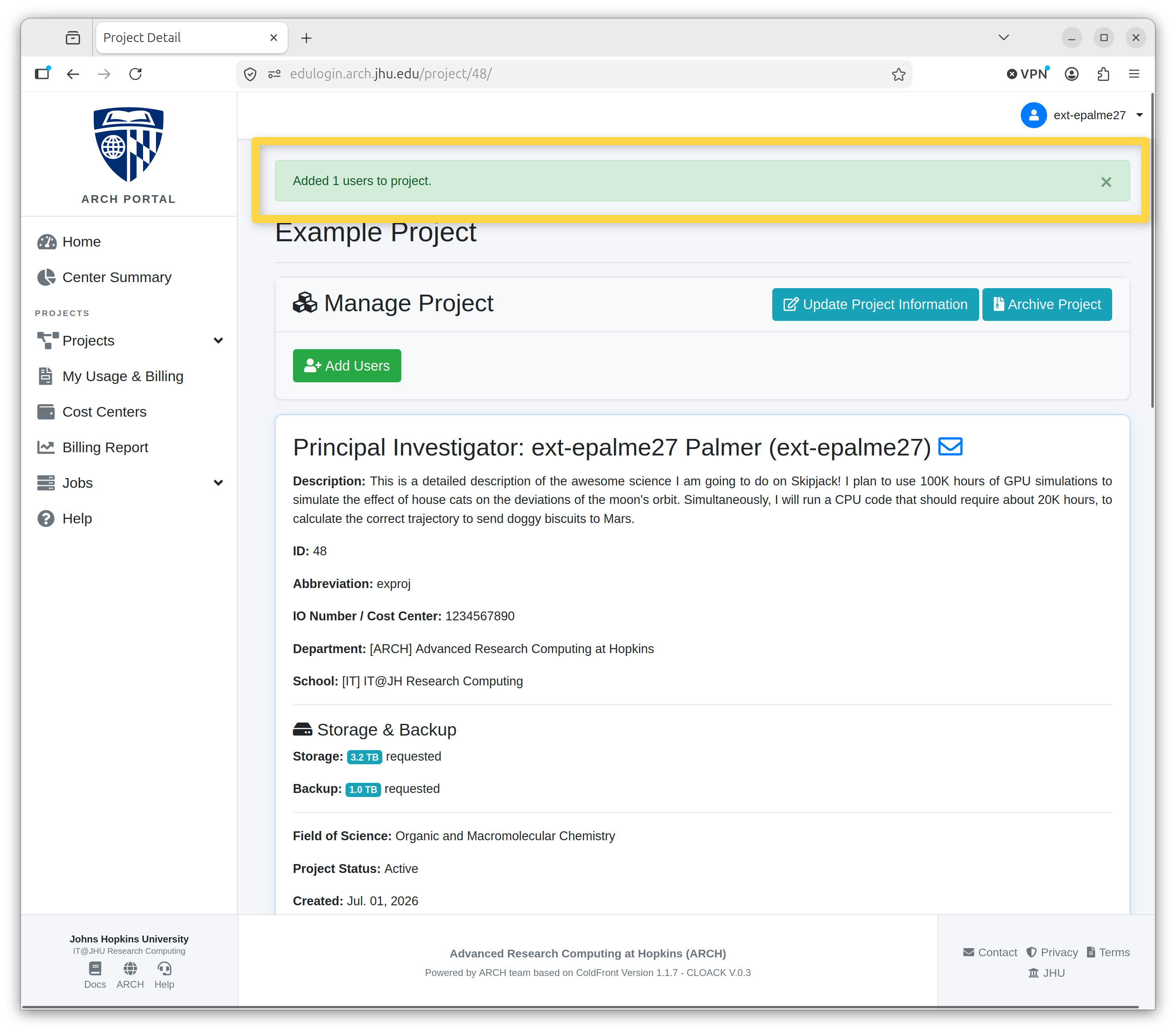
The banner at the top will confirm the user has been added.
Assign Proxy Account Managers
Note
Only PIs can assign a user to manage a project they own.
From the project page locate the Users table.
Select the user whose role you want to change and click the person icon under Actions.
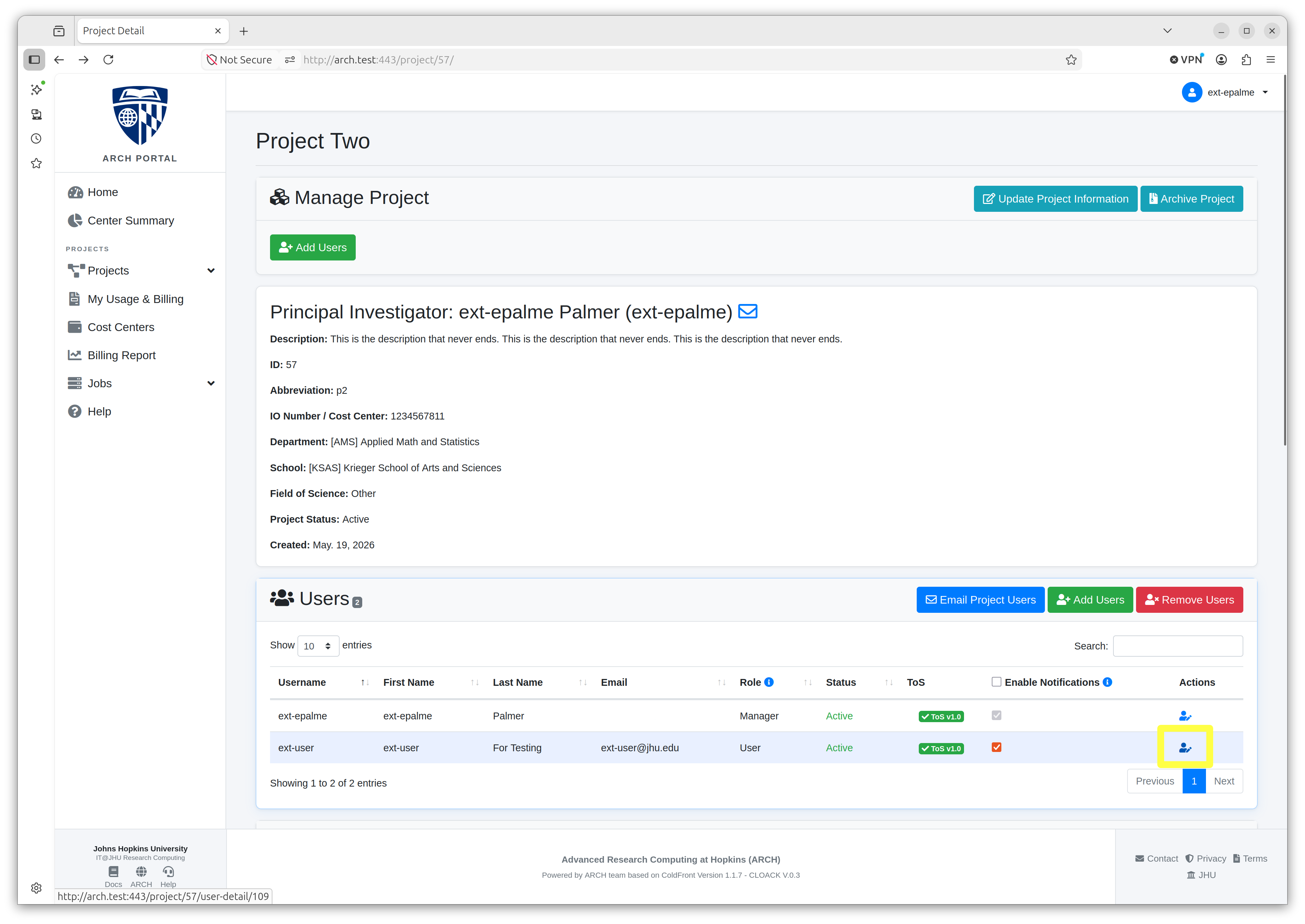
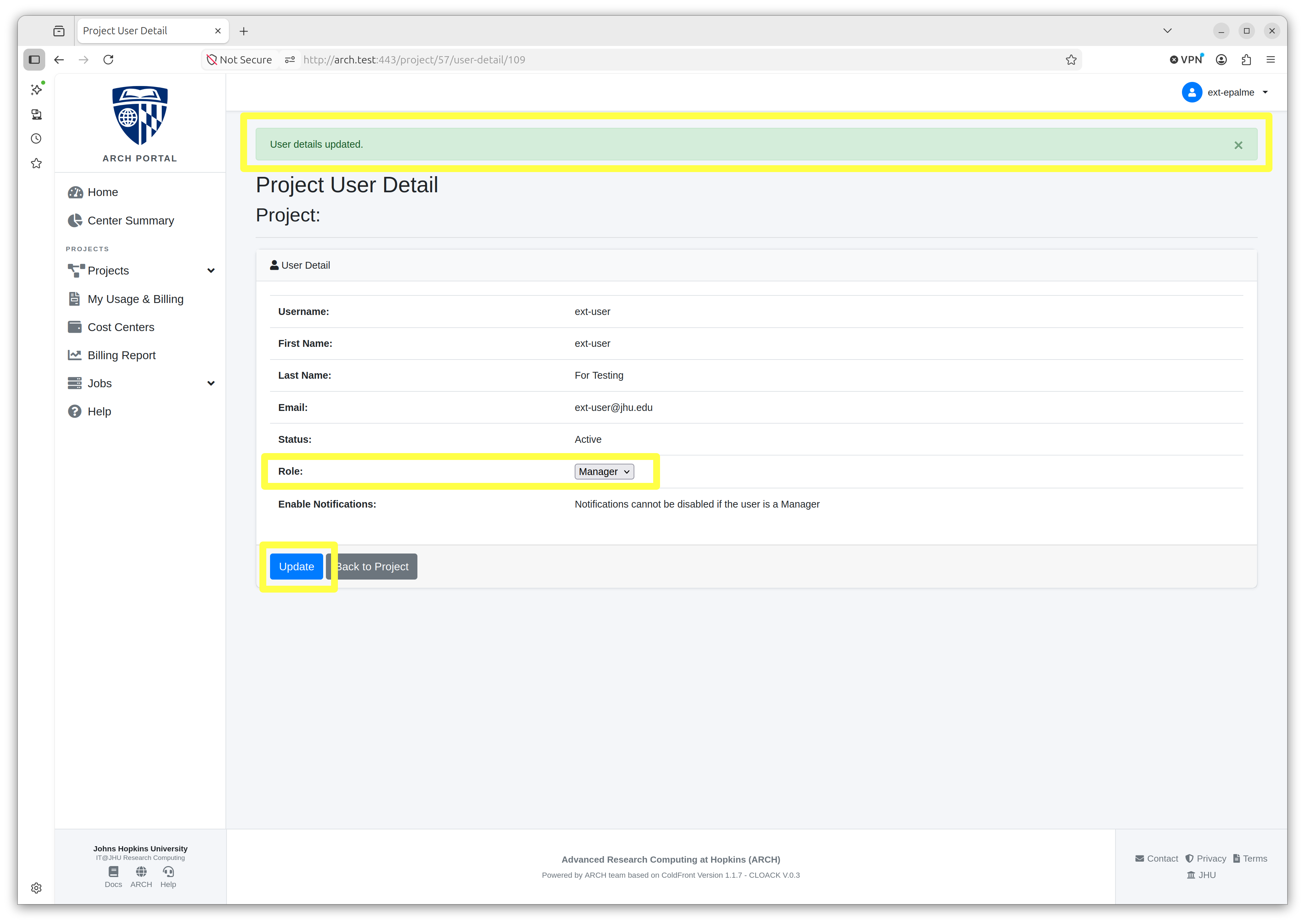
On the Project User Detail page, select the Manager role from the dropdown menu.
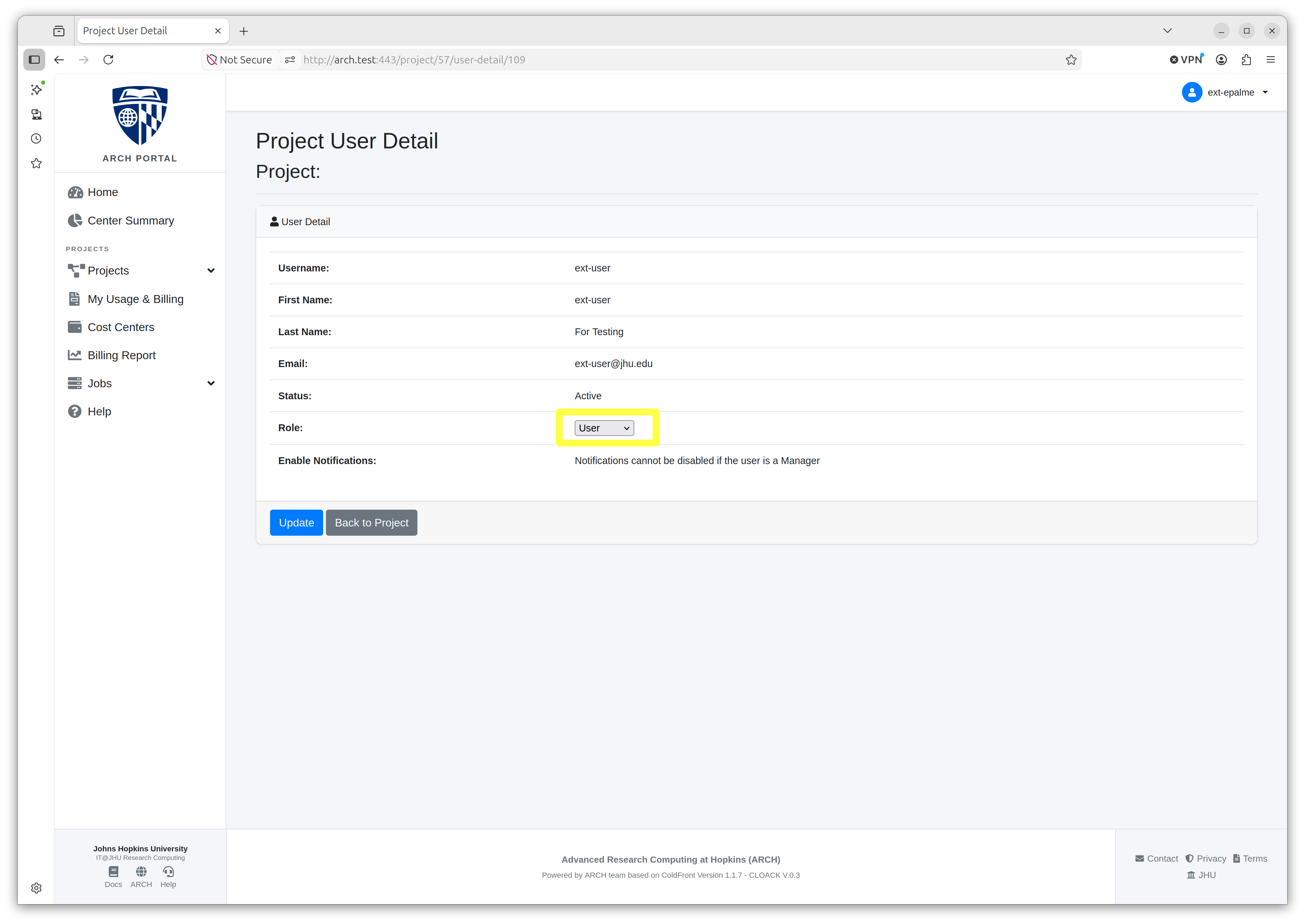
4. Click the Update button and note the green banner at the top of the screen confirming the change.